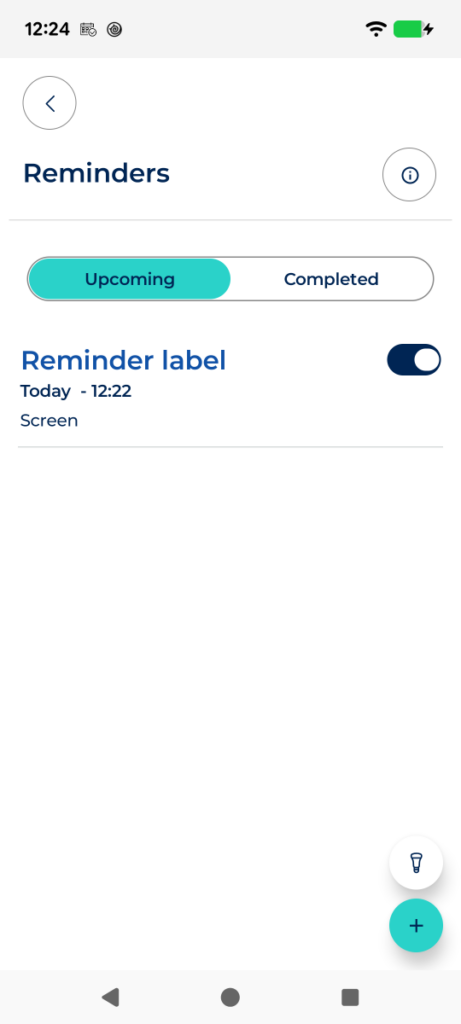
Create reminders for recurring events or anything you don’t want to forget. Visualfy will notify you with a push notification on the day and at the time you set. Never miss a thing!
Visualfy’s Reminders feature lets you create custom reminders for important events, daily tasks, or appointments. You can set them to alert you on screen, with vibration, or with light, depending on what you need.
Reminders are especially useful because they give you a visual and tactile way to remember something important. Each reminder has its own combination of vibration, flash, flashing screen, and repeat pattern, so you never miss an appointment.
Permissions required #
To receive reminder alerts on Android, you need to have enabled:
- The notifications permission.
- Everything needed to receive full-screen alerts (overlay access, show on lock screen, and active notifications).
- The exact alarms permission, on Android 12 or higher.
- The camera permission, only if you plan to use flash as the alert for a reminder.
Accessing Reminders #
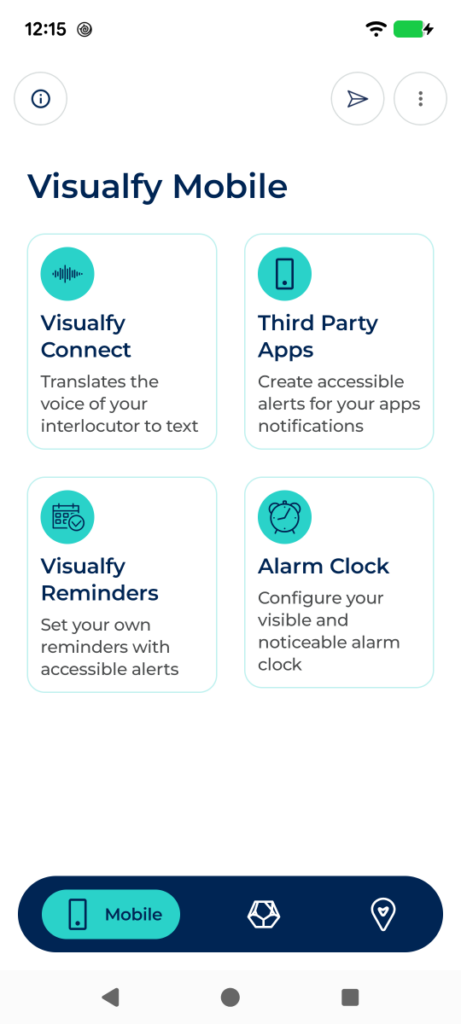
- Open the Visualfy app with your account.
- In the bottom bar, tap “Mobile”.
- Inside “Mobile” you’ll see several options; tap “Visualfy Reminders”.
Creating a reminder #
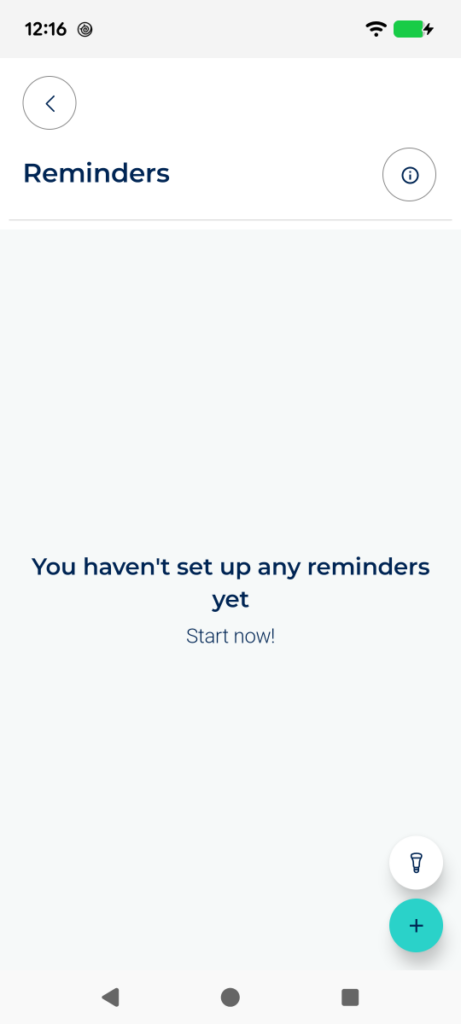
- Go into “Visualfy Reminders”.
- Tap the round turquoise “+” button, at the bottom right.
- The new reminder’s settings screen opens.
Reminder settings #
From top to bottom, the settings screen has the following sections:
Date, time and name #
- Pick the day in the date field, and the time with the time wheel.
- Type a name for the reminder in the “Name” field.
You can’t pick a date earlier than today — neither as the reminder’s own date nor as the end date of a custom repeat. If you leave the “Name” field empty, Visualfy assigns it a default name when you save.
Repeat #
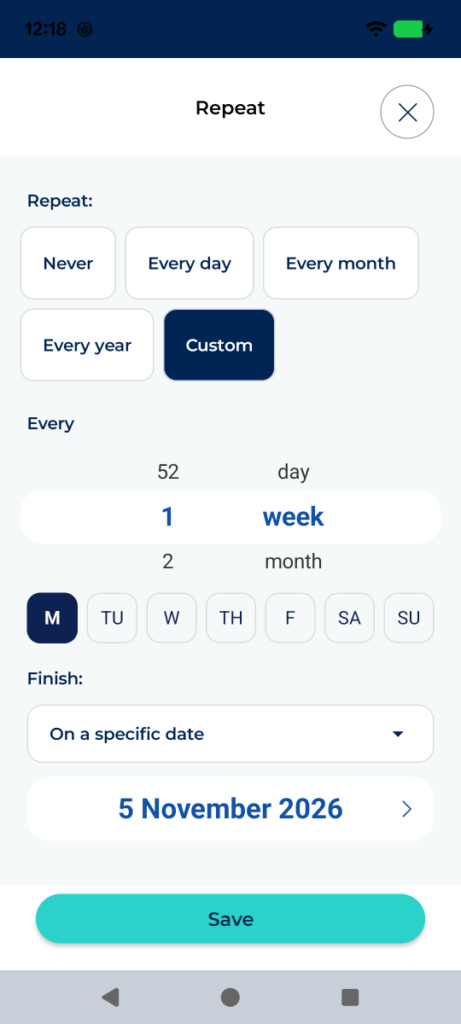
Tapping “Repeat” opens a screen with these options:
- Never: The reminder fires once and doesn’t repeat.
- Every day / week / month / year: A fixed repeat at that interval.
- Custom: Choose how many days, weeks, months, or years apart each repeat is, using the two wheels under “Every”. If you choose “weeks”, a row also appears to mark which days of the week you want the alert on (at least one day must stay selected).
Inside “Custom”, “Ends” decides when the repeat stops:
- Never: Repeats indefinitely.
- After a number of times: Repeats the chosen number of times, then stops.
- On a specific date: Repeats until the chosen day (it can’t be a date in the past).
Sound and alert duration #
- Sound: Opens Android’s own ringtone picker to choose this reminder’s sound.
- Duration: How many seconds the alert (vibration, flash, and flashing screen) lasts once the reminder fires.
Vibration, flash and flashing screen #
- Vibration: Tapping it opens a screen to pick a preset vibration pattern, or record your own, and turn it on.
- Flash: Uses the camera’s flash as a light alert. The first time, Android will ask for the camera permission.
- Flashing screen: Makes the phone’s screen flash. Requires the full-screen alert permissions to be granted.
Philips Hue #
Customize the visual alert through your Philips Hue bulbs:
- Turn on all: Turns every listed bulb on or off at once, instead of one by one. Turned off, you choose bulbs individually. Any bulb shown as unreachable is disconnected.
- Keep color: On, the bulbs stay lit in the reminder’s color once the alert ends. Off, they return to whatever state they were in before.
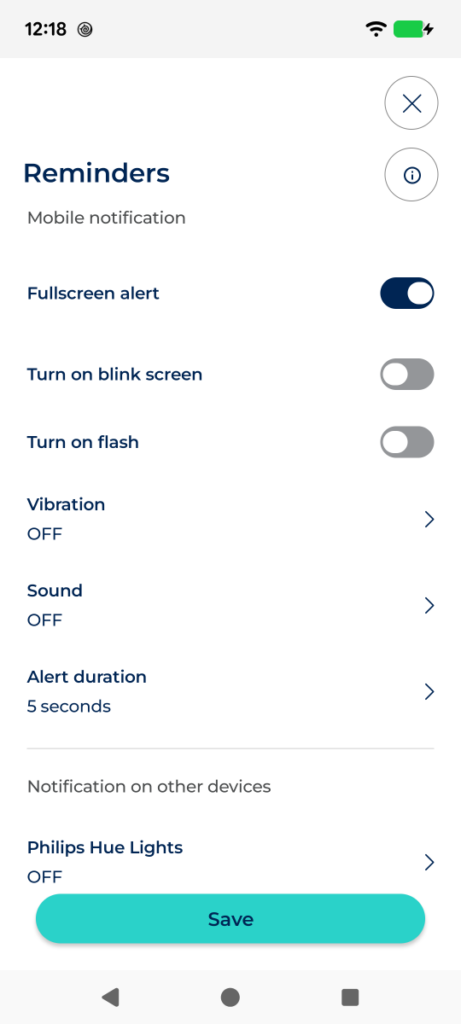
- Set the options you want, then tap “Save”, at the bottom of the screen.
Done! Your reminder is created and will show up in the “Upcoming” tab on the main screen.
Deleting a reminder #
- Go to “Visualfy Reminders”, where you’ll see the list of reminders you’ve created.
- Tap the reminder you want to delete to open its settings.
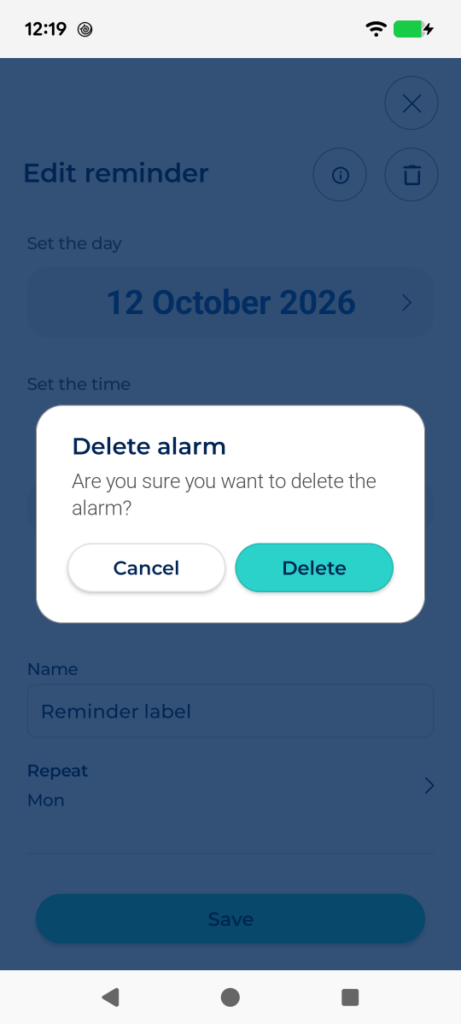
- Tap the trash icon, at the top right.
- Confirm in the message that appears by tapping “OK”.
Reminder push notification #
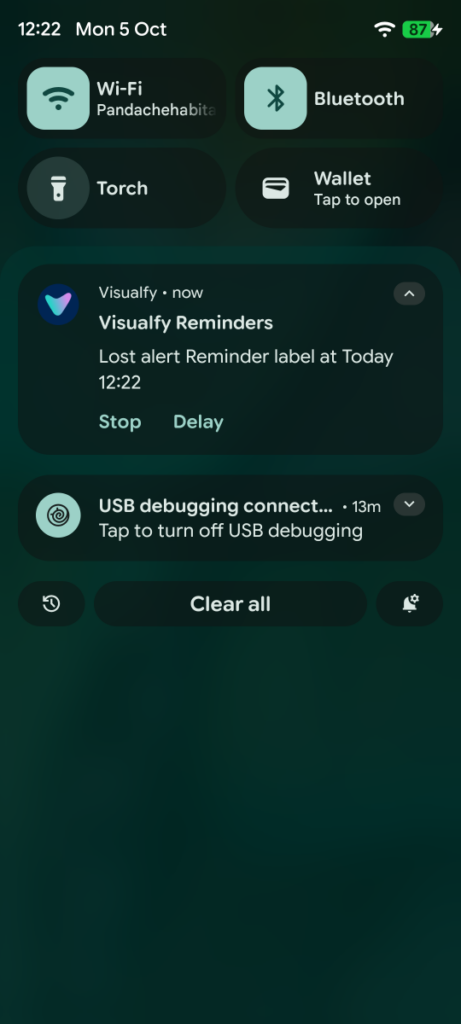
The phone receives a push notification about the reminder on the day and at the time you set, with two buttons:
- Snooze: Delays the alert by 10 minutes; after that, it fires again.
- Stop: Marks the reminder as completed for today; it won’t repeat again for the rest of the day.
Tapping the body of the notification opens the Visualfy app on that reminder’s settings screen.
Full-screen alert #
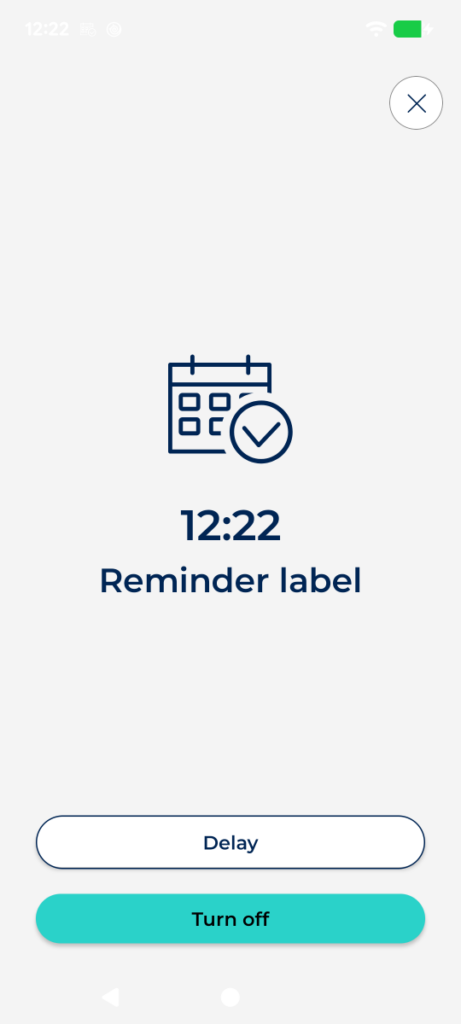
If the reminder fires while the phone is locked and the full-screen alert is set up correctly, the device shows a full-page screen with two buttons:
- Snooze: Delays the alert by 10 minutes.
- Turn off: Stops the alert and marks it as completed for today.
“Upcoming” and “Completed” tabs #
The main Reminders screen has two tabs at the top of the list:
- Upcoming: Active reminders, still waiting to fire.
- Completed: Reminders already marked as completed (shown with their switch off and in grey).
To reactivate a completed reminder, go to the “Completed” tab and turn its switch back on: it gets scheduled again and moves to the “Upcoming” tab.