The emergency alert is used to warn the people in the building right away about an emergency, for example an evacuation notice or a storm. It is usual to keep the messages ready and send them when needed.
NOTE: this option only appears in the menu if the building has the emergency alert installed.
The screenshots show the Control Panel in Spanish. You can switch it to English in the user menu.
Creating the alert #
- Open the menu on the left.
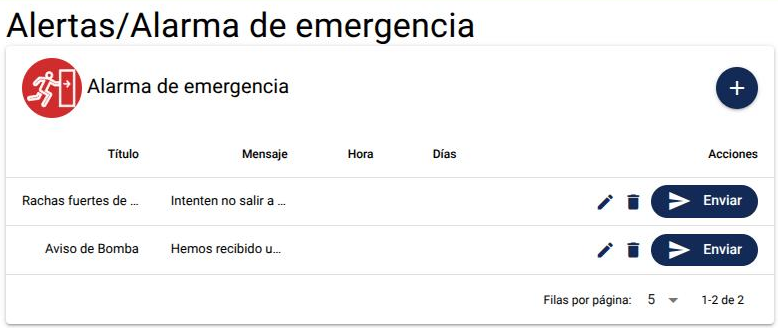
- Tap “Emergency”. You will see the list of alerts created.
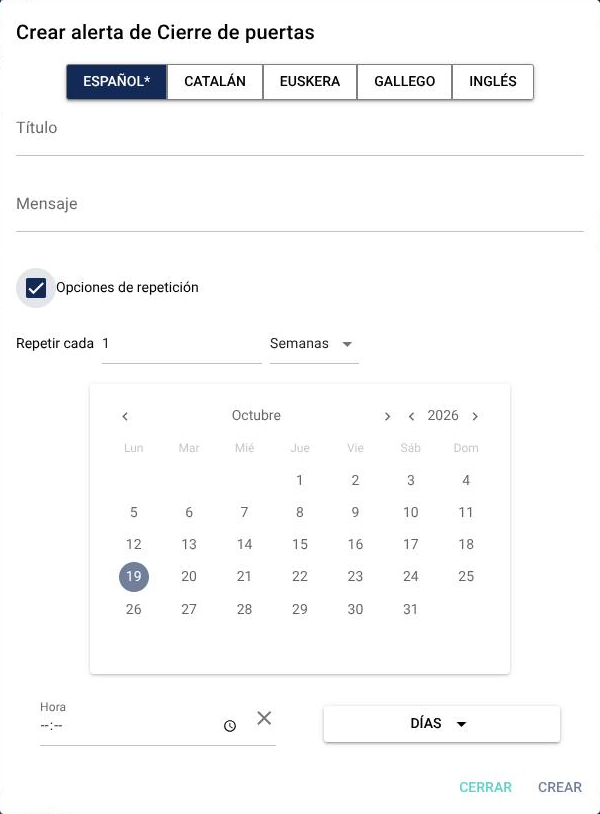
- Tap the round “+” button. The “Create Emergency alert” window opens.
- Fill in the fields explained below.
- Tap “Create”. The message “The alert has been successfully created.” appears.
Alert fields #
- Language: choose the tab of the language you write in: Spanish, Catalan, Basque, Galician or English. Spanish is required; the others are optional. Each person gets the alert in the language of their phone, if you wrote it.
- Title: shown in the notification and in the full-screen alert.
- Body: the message, shown in the notification and in the full-screen alert.
- Repeat options: tick this box if you want the alert to be sent on a schedule. If you don’t tick it, the alert is only sent when you tap “Send”.
Repetition #
With “Repeat options” ticked, these fields are enabled:
- Repeat every: a number from 1 to 31 and the unit: “Day”, “Week”, “Month” or “Year”. By default, every 1 week.
- Calendar: with “Month”, pick the day of the month; with “Year”, the day and the month.
- Time: the sending time. It is required.
- Days: the days of the week. Only used with “Week”, and you must tick at least one.
The time is saved in the time zone you chose in the user menu.
Editing the alert #
- In the “Actions” column, tap the pencil. The window opens with the alert details.
- Make the changes.
- Tap “Save changes”, or “Close” to leave without saving.
Deleting the alert #
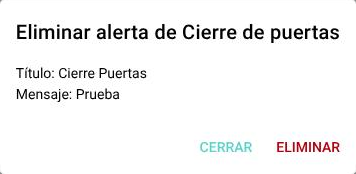
- In the “Actions” column, tap the trash icon. A window opens to confirm it.
- Tap “Delete”, or “Close” to keep it.
Sending the alert now #
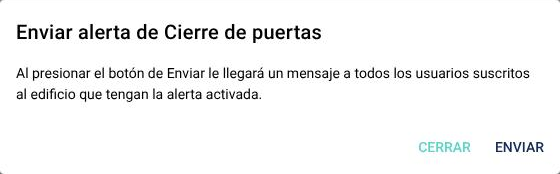
You can send an alert at any time, even if it has a schedule.
NOTE: when you send it, all the people subscribed to the building who have the alert turned on get it right away.
- In the “Actions” column, tap “Send”. A window opens to confirm it.
- Tap “Send”, or “Close” to not send it. If it is sent, “Alert sent” appears.