

Visualfy Connect is a feature designed to help people with hearing loss communicate effectively. The app works as a communication bridge between deaf or hard-of-hearing people and the world around them.
Visualfy Connect uses speech recognition technology to capture and convey information in real time as text transcribed on the device screen. Visualfy Connect can also be customized to suit each user’s needs, such as text and screen colors, font size or language, among other things.
Required Permissions #
To use Visualfy Connect, you must have the following enabled:
Android:
- The microphone permission.
- The Do Not Disturb permission.
- The Bluetooth permission, if you want to connect a Bluetooth microphone.
- The location permission, if you want to suggest new accessible locations.
iOS:
- The microphone permission.
- The speech recognition permission.
Accessing Visualfy Connect #
To open Visualfy Connect, follow these steps:
- Open the Visualfy app and sign in with a registered account.
- In the bottom menu, tap the first section: “Mobile”.
- Inside "Mobile" you will see several options. Tap "Visualfy Connect".
Starting speech-to-text transcription #
To start transcribing speech to text in Visualfy Connect, follow these steps:
- Open Visualfy Connect on your mobile device.
- Tap the turquoise button with a microphone. Visualfy Connect will start listening to what you say.
- Start speaking clearly and loudly so the app can transcribe your words.
- As you speak, Visualfy Connect will transcribe what you say on the app screen.
Note that the accuracy of the speech-to-text transcription can be affected by background noise or by the quality of your phone’s microphone.
Putting the Visualfy app in the background #
If you put the app in the background while Visualfy Connect is transcribing speech to text, recognition is paused and nothing that is said will be written on the Connect screen.
When you open the app again, speech recognition restarts and the screen shows the conversation up to the moment the app went into the background.
Pausing speech recognition #
To pause speech recognition in Visualfy Connect, follow these steps:
- While Visualfy Connect is listening and writing on the screen, tap the red "Pause" button at the bottom of the speech recognition screen.
- The "Pause" button turns back into the turquoise microphone button.
Remember that while speech recognition is paused, the app is not listening to what you say and will not give you real-time information. The text written before remains on the screen.
Resuming speech recognition #
To resume speech recognition, tap the turquoise microphone button again. Visualfy Connect will start listening again and write everything you say on the screen.
Exiting Visualfy Connect #
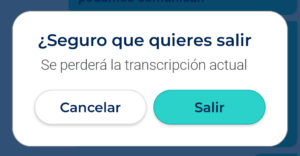
To exit Visualfy Connect, follow these steps:
- On the Visualfy Connect screen, tap the arrow icon or the “X” in the top left corner of the screen.
- If there is transcribed text on the screen, a confirmation message appears. Tap “OK” to exit Connect.
Typing #
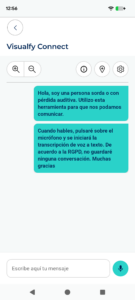
The bottom bar of Visualfy Connect has a field for typing text. It opens a keyboard so you can write on the screen what you want to say to the person you are talking to. To type with the Visualfy Connect keyboard, follow these steps:
- On the Visualfy Connect screen, tap the area that says "Type your message here" at the bottom of the screen.
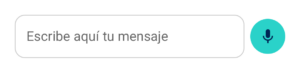
- A keyboard appears on the screen. Type the message you want to send.
- If you want, you can use autocorrect and the word suggestions that appear at the top of the keyboard as you type.
- When you have finished typing the message:
- On Android, tap the "Enter" key on the keyboard.
- On iOS, tap the "Send" key on the keyboard.
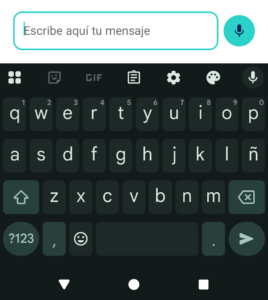
Android
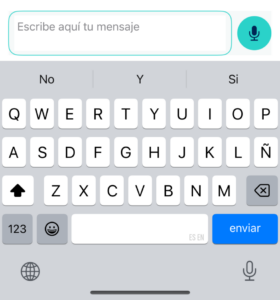
iOS
When you close the keyboard, the typed text stays on the screen and you can continue with speech-to-text transcription.
To tell apart the person speaking and the person typing, each text has a different background color.
Screen rotation #
By default, the Visualfy Connect screen is shown in portrait mode. If you prefer, you can turn your phone to landscape and the Visualfy Connect screen will rotate too.
NOTE: screen rotation only works if auto-rotate is enabled in your phone settings. If it is disabled, you can only use Connect in portrait mode.
Visualfy Connect settings #
Text size #
The Visualfy Connect toolbar, at the top of the screen, has two buttons to increase and decrease the font size of the text shown.
- To increase the font size, tap the magnifying glass icon with the "+" sign.
- To decrease the font size, tap the magnifying glass icon with the "-" sign.

Theme (text and background color) #
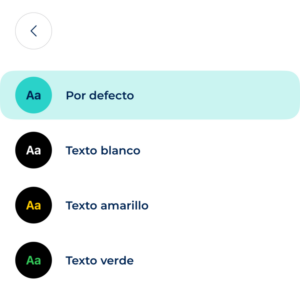
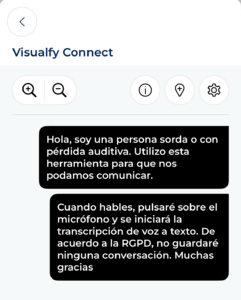
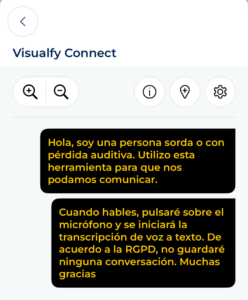
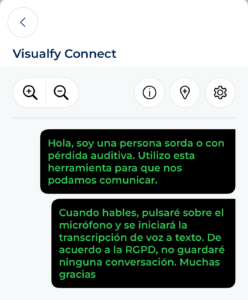
To make the screen easier to read, the gear icon in the Visualfy Connect toolbar has an option to change the theme (text and background color). You can choose from 4 options:
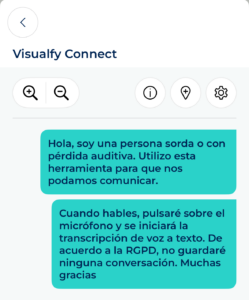
- Visualfy default colors.
- Black background with white letters for transcribed text and yellow letters for typed text.
- Black background with yellow letters for transcribed text and white letters for typed text.
- Black background with green letters for transcribed text and white letters for typed text.
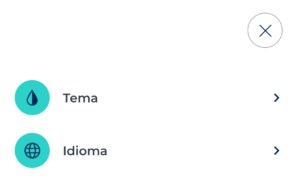
To change the theme, tap the gear icon → Theme and choose the theme you find most comfortable.




Language #
Visualfy Connect lets you choose the language, so the text shown will be in the selected language. To do this, tap the gear icon → Language.
By default, the language selected is the one set on your phone.
You can only choose the language you want from the list.
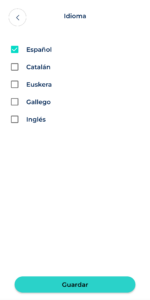
To save your changes, tap the arrow icon, the “X” or the "Save" button.
Saving your settings #
All the settings you make in Visualfy Connect (font color, text size…) are saved when you exit the feature. This way your preferences are kept and you do not have to customize Visualfy Connect every time you open it.
Sharing the location of places that are not accessible #
Required permission: to share the location of a place you would like to be accessible, you need the following permission:
- The location permission.
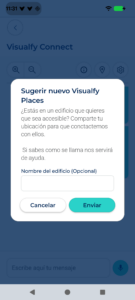
Visualfy Connect lets app users share the coordinates of public buildings that are not accessible to deaf or hard-of-hearing people and that they would like to be. Visualfy will then contact these places to offer them the Visualfy Places solution.
To send the coordinates of the place:
- Tap the icon at the top right.
- The following question appears: “Are you in a building that you would like to be accessible? Share your location so we can contact them.” with these options:
- Add the name of the building so we can find it.
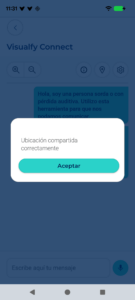
- Tap “Send”: the text “Loading your location” appears and the coordinates of the place are sent.
- Tap “Cancel”: the location is not sent and the dialog closes.
Using Bluetooth headphones with a microphone #
Required permission: to use wireless devices with Visualfy Connect, you must have enabled:
- The Bluetooth permission (Android 12 or later).
To transcribe speech to text, Visualfy Connect uses the phone’s microphone. You can use Bluetooth headphones with a built-in microphone instead.
- Turn on the headphones and enable Bluetooth on your device.
- As soon as the headphones are connected to the phone, the voice of the person speaking is picked up by the headphones’ microphone and the text is transcribed on the Visualfy Connect screen.
- When the headphones are disconnected or turned off, or Bluetooth is disabled on the device, audio is picked up by the phone’s microphone again.
Frequently asked questions #
Why can’t I record the screen in Visualfy Connect? #
At Visualfy we are committed to preventing the disclosure of sensitive information and we comply with data protection law (LOPD) at all times.
For this reason, you cannot record the screen in Visualfy Connect. On some phones, a screen recording of Visualfy Connect will show a completely black screen.
Why can’t I read the transcribed text in Visualfy Connect when the app is in the app switcher? #
At Visualfy we are committed to preventing the disclosure of sensitive information and we comply with data protection law (LOPD) at all times.
For this reason, the text written in Visualfy Connect cannot be read there.
Can I transcribe speech to text with Bluetooth headphones with a microphone? #
Yes. You can connect your phone to wireless headphones via Bluetooth. The voice of the person speaking is then picked up by the headphones’ microphone and the text is transcribed on the Visualfy Connect screen.
If the headphones are disconnected, the voice of the person speaking is picked up by the phone’s microphone.
NOTE: on phones with Android 12 or later, you must grant the Bluetooth permission.


