

Visualfy’s Third-Party Apps functionality is a tool that allows users to receive visual alerts and vibrations from other apps on their mobile device, such as WhatsApp, Instagram, Telegram, SMS, and others.
This way, people who are deaf or hard of hearing can stay informed about notifications from other apps.
Required Permissions #
To receive notifications from third-party apps, you must have the following permissions enabled:
- Notification access permission.
- Phone permission (to receive missed call alerts).
Features #
How do I activate Third-Party App notifications? #
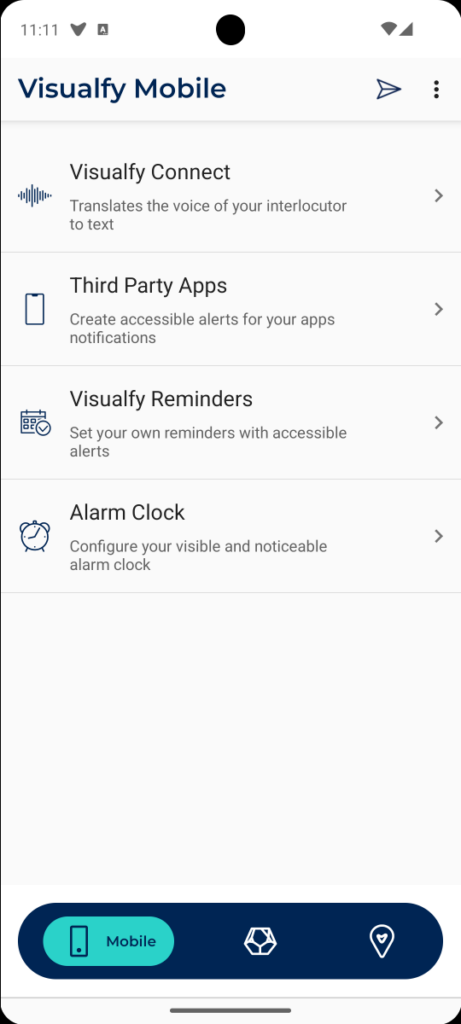
- On the main menu, tap the first option, "Mobile" > Third-party apps.
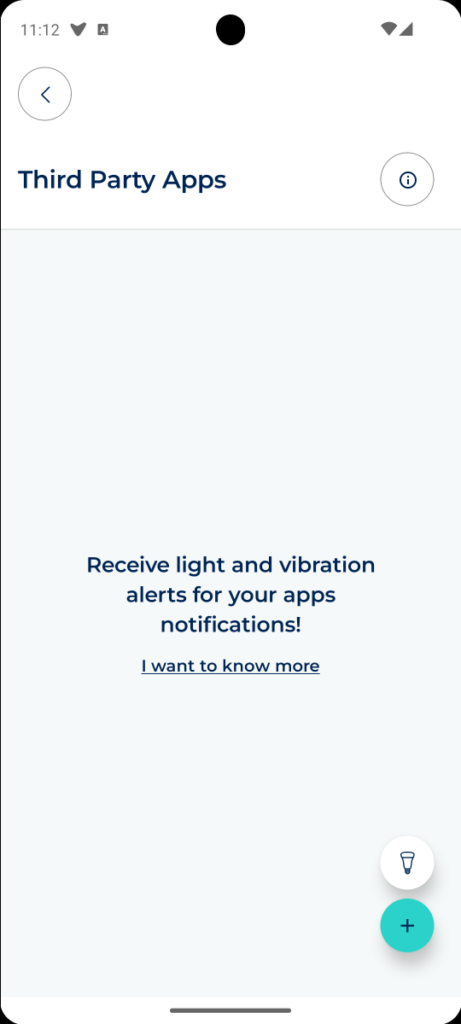
- Tap the "+" button to add a new app.
- Accept the "full screen" and "notification access" permissions to continue.
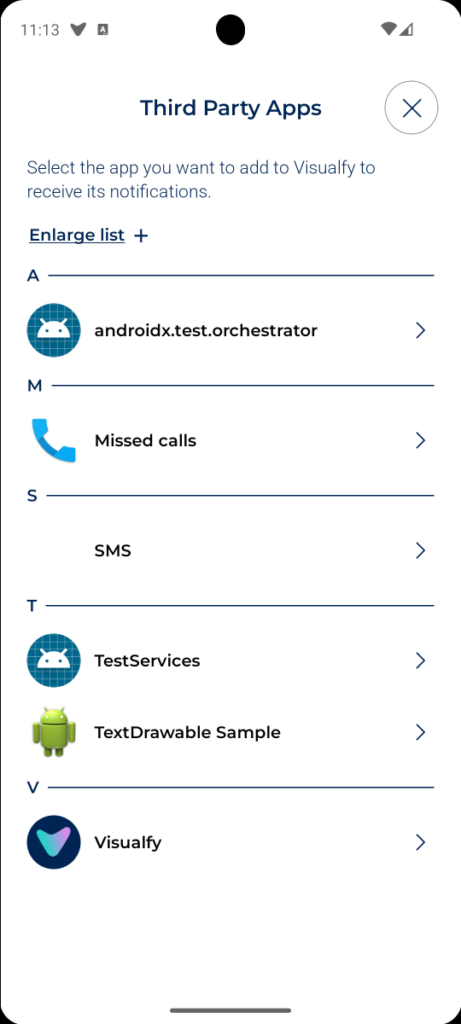
- Select the app you want to add from the list that appears.
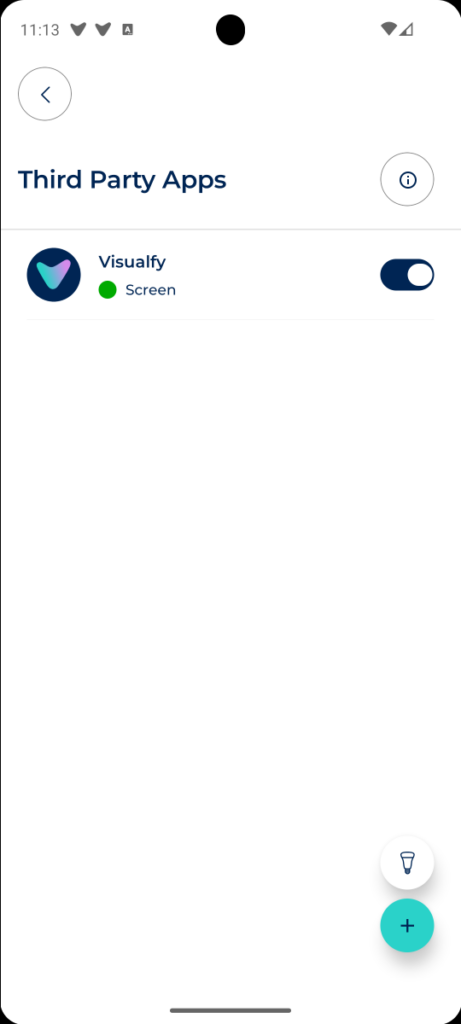
- The app will be configured.
Configure notifications. #
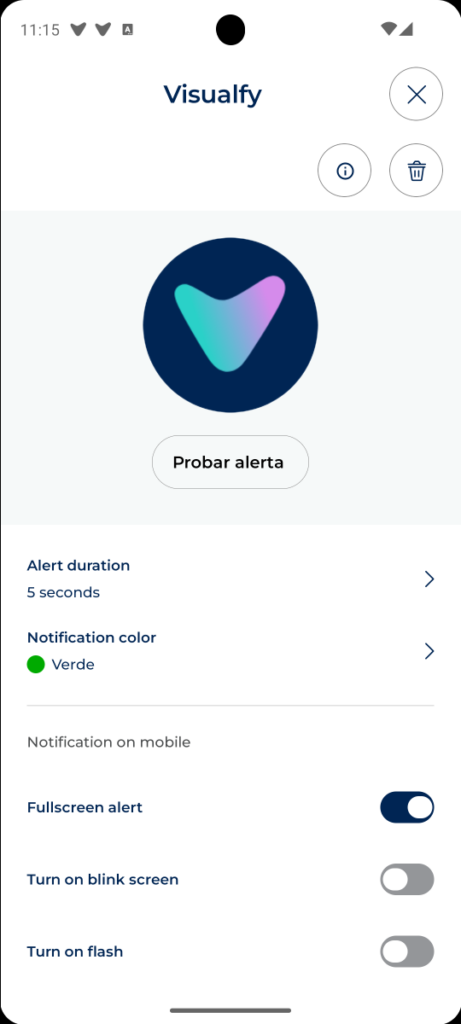
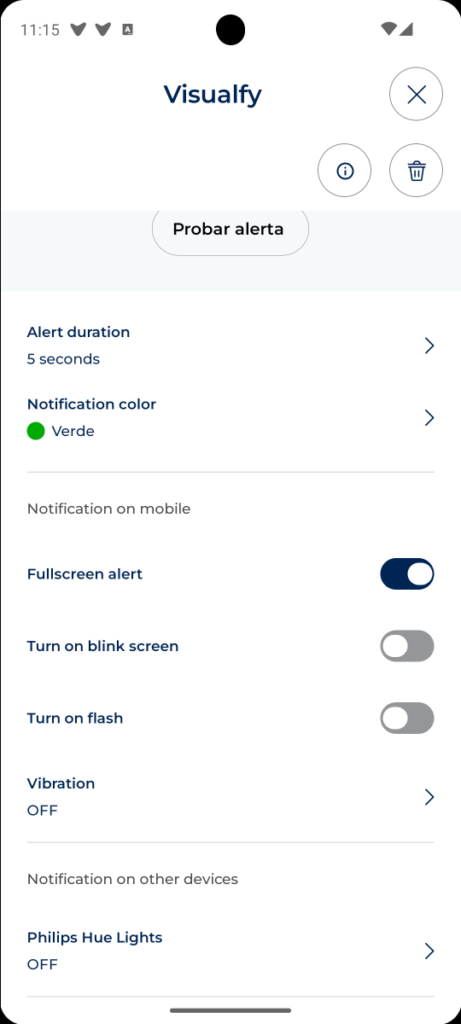
Yes, you can configure the color and duration for third-party app notifications, so the screen lights up in your chosen color for the configured time.
You can also activate other options such as:
- Flashing screen: This makes the screen brightness fluctuate.
- Flash: (Requires camera permissions) Your phone’s camera flash turns on and off when the notification is displayed.
- Vibration: You can select different vibration patterns for the notification.
You can also configure whether you want your Philips Hue bulbs to turn on when you receive a notification.
Troubleshooting #
Why isn’t my Hue Bridge showing up in the pairing list? #
First, make sure your Hue Bridge and your phone are connected to the same Wi-Fi network. You can use the Fing app, which will show you the devices connected to your network. To do this, follow these steps:
- Download the Fing app from the app store.
- Connect to your Wi-Fi network and open the app.
- Tap "Scan for devices" and wait for the app to scan your network.
- When it’s finished, you’ll see a list of all connected devices. Check that your Hue Bridge and your phone appear in this list.
If the Bridge doesn’t appear in this list, it means it’s disconnected from the network or turned off.
- Check the power cable connection and turn on the Bridge if it’s off.
- Make sure the network cable is plugged in securely.
- Try again with Fing.
If it still doesn’t appear in the list, it means your router is blocking the Bridge. To fix this, contact your internet service provider so you can connect the Bridge to your network.
My phone and Bridge are connected to the same network, why can’t I pair the Bridge? #
If you’ve checked with the Fing app and both devices are connected to the same network but you still can’t pair the Hue Bridge, we recommend contacting Visualfy Support so we can help you resolve your issue.


