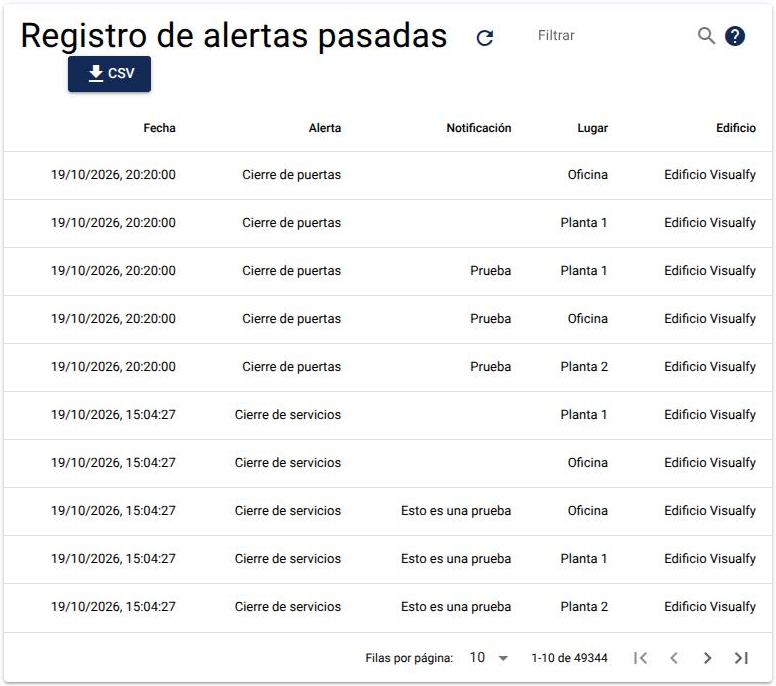
The alert log shows the history of the alerts activated in the building. Use it to check what happened and that the people in the building got the important alerts.
The screenshots show the Control Panel in Spanish. You can switch it to English in the user menu.
Seeing the log #
- Open the menu on the left.
- Tap “Alert Logs”. The “Alert Log” screen opens.
The table has these columns:
- Date: the day and time, in the time zone you chose.
- Alert: the type of alert.
- Notification: the text that was sent.
- Location: the device, floor or area that detected or sent it.
- Building.
You can sort the table by date, alert or location. Use the arrows at the bottom to see older alerts, and “Rows per page” to choose how many you see at a time. The arrows button next to the title refreshes the table.
Searching for alerts #
Type in the “Filter” field. You can search in two ways:
- By alert name: for example “fire”, “doorbell” or “gas”.
- By date: for example 2024-05-01. You will see the alerts from that date on.
The “?” icon next to it shows this same help.
Downloading the log #
- Tap the “CSV” button.
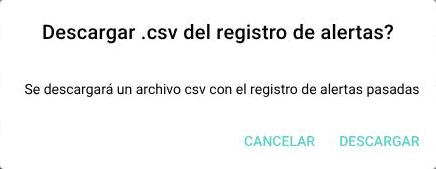
- Tap “Download” in the confirmation window.
A CSV file is downloaded, which you can open with Excel, with the same columns as the table.