

GPS or Location determines your exact location and is needed for Visualfy Connect and Visualfy Places (on both Android and iOS).
Turn on this option on your phone so the Visualfy app can access the device location to:
- Visualfy Connect: suggest places that are not accessible to Visualfy, so they can get the Visualfy solution. Here we explain how to do it.
- Visualfy Places: receive alerts from places adapted by Visualfy when you are inside the building area. Here we explain more details and how to receive alerts by location.
Newly installed app #
- iOS: when you open the app for the first time, it asks you to turn on Location if it is off. Tap “Settings” and your phone takes you to the screen to turn on Location.
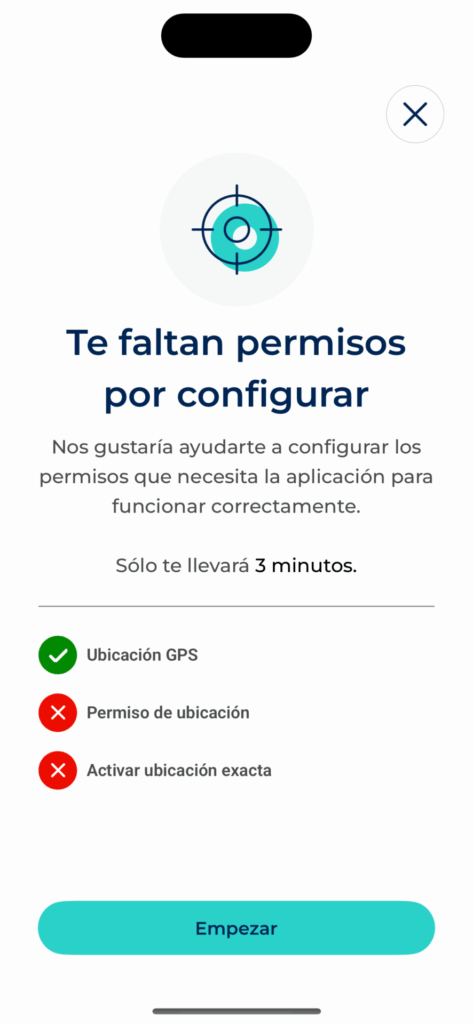
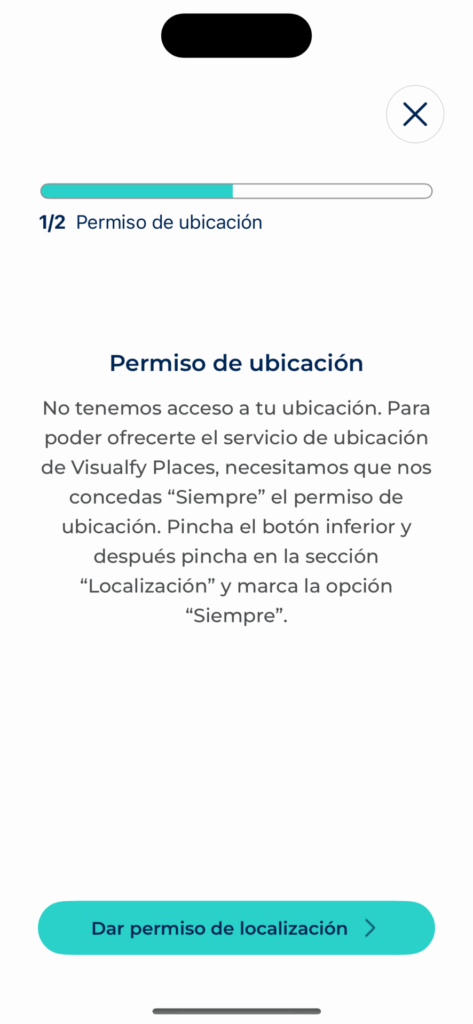
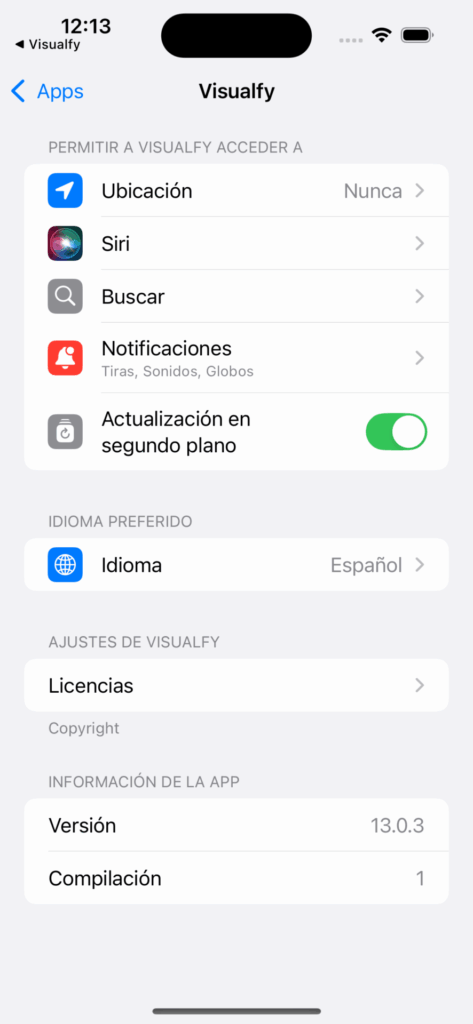
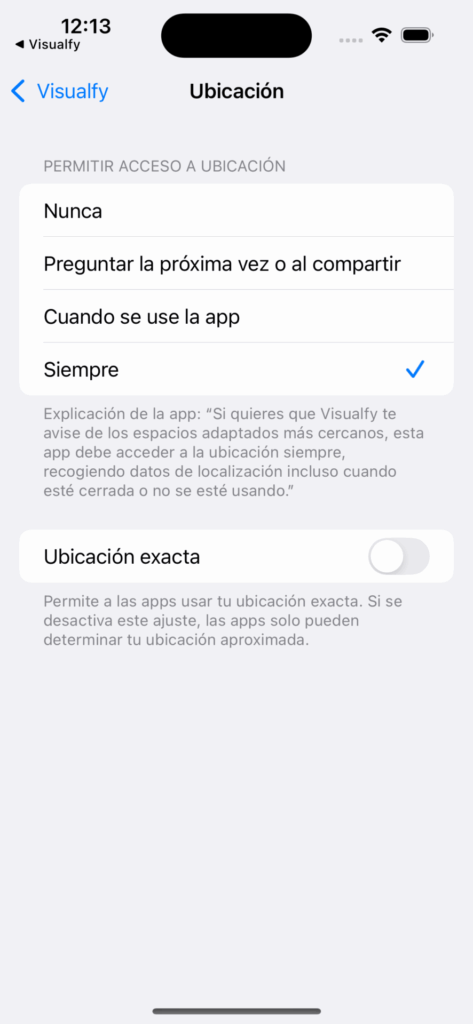
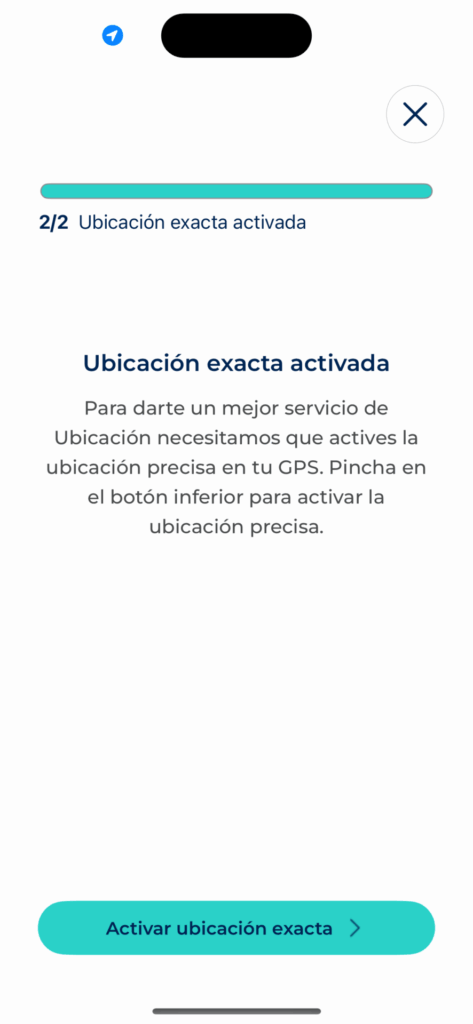
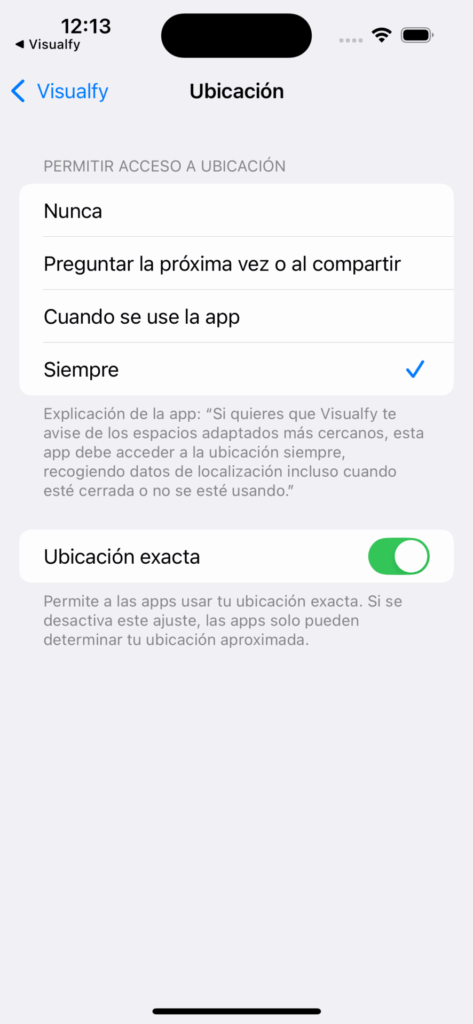
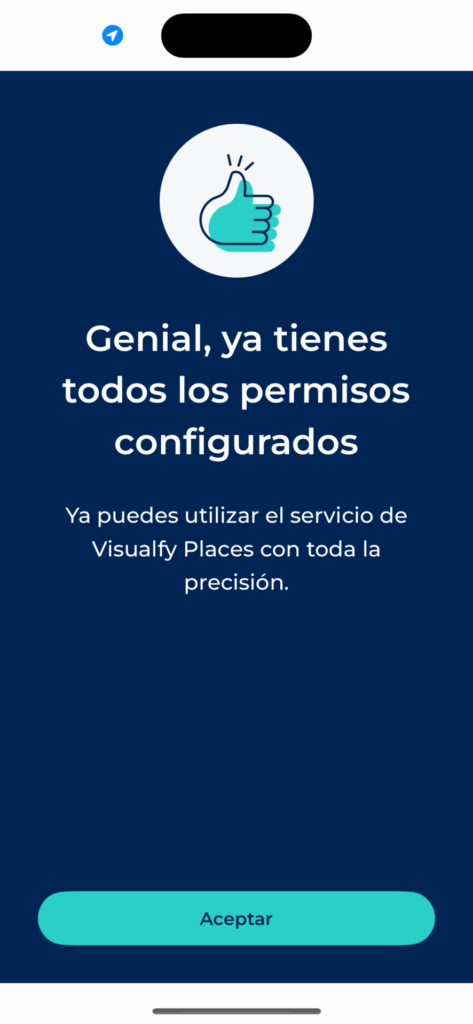
- Android: when you sign in for the first time, a series of permissions appears. We recommend that you always allow the location permissions.
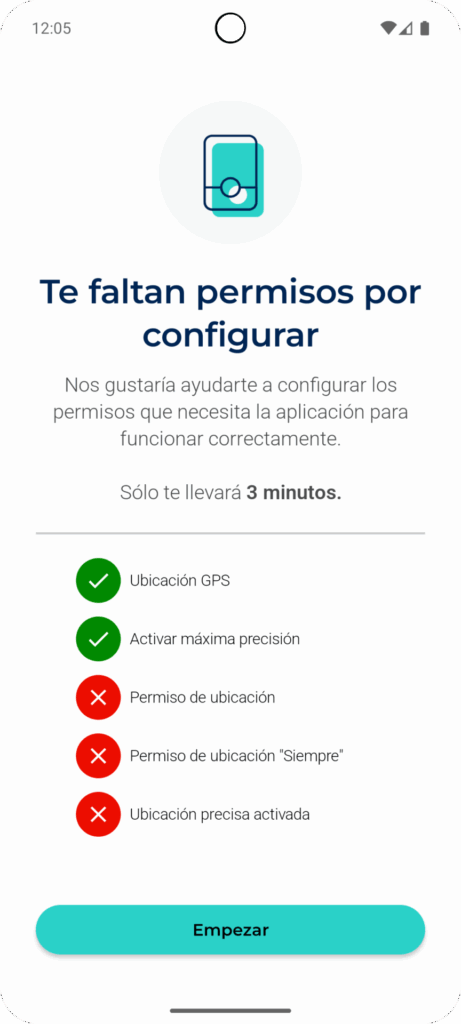
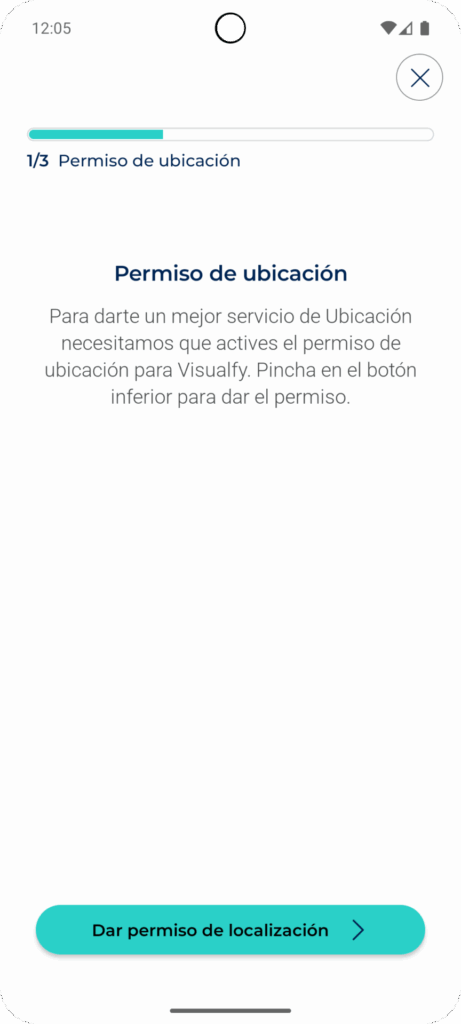
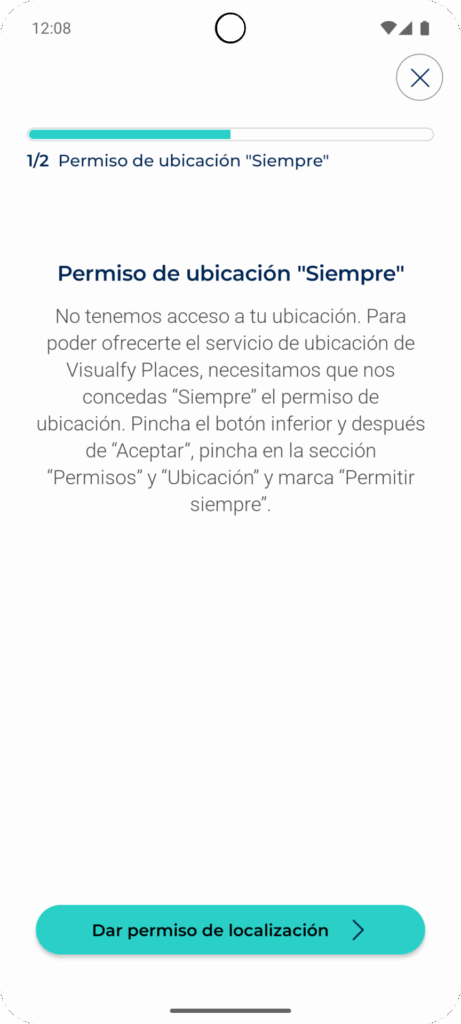
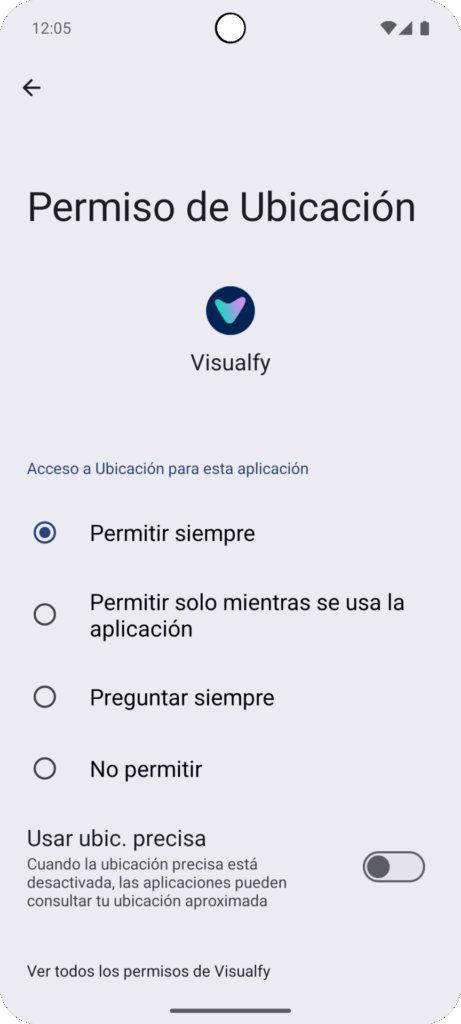
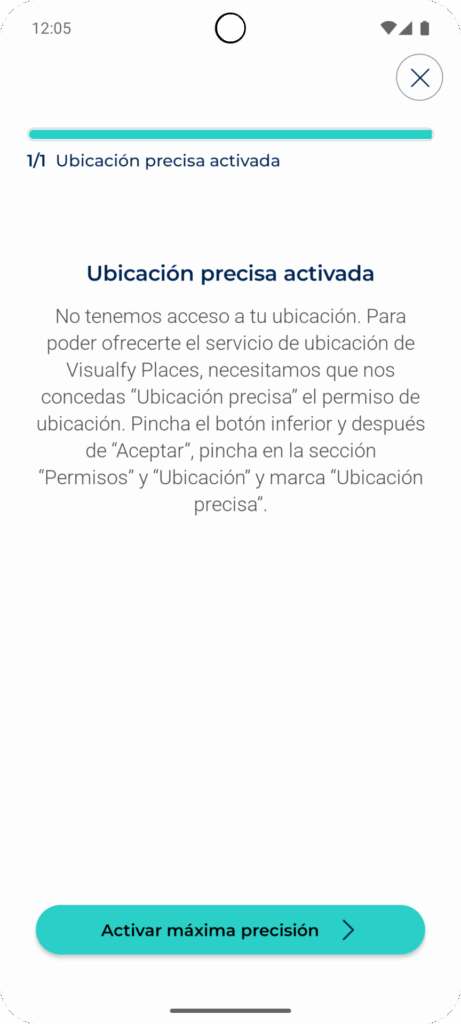
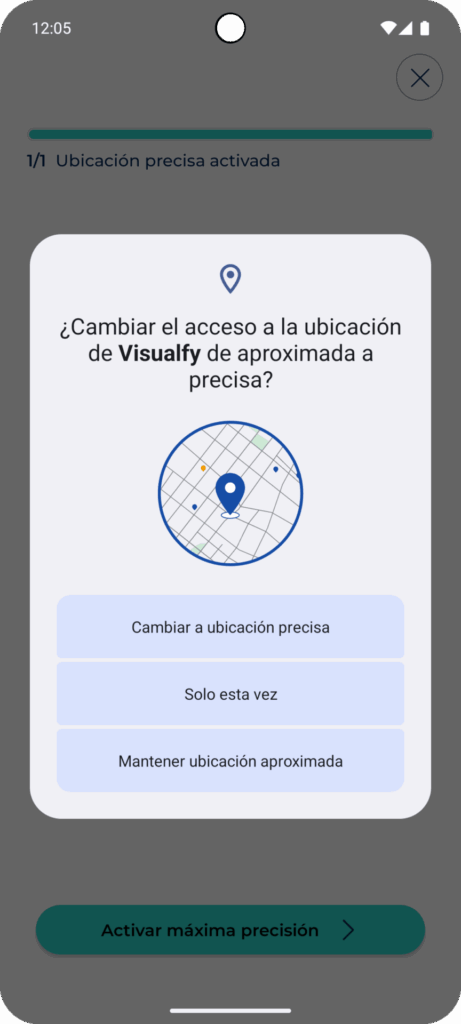
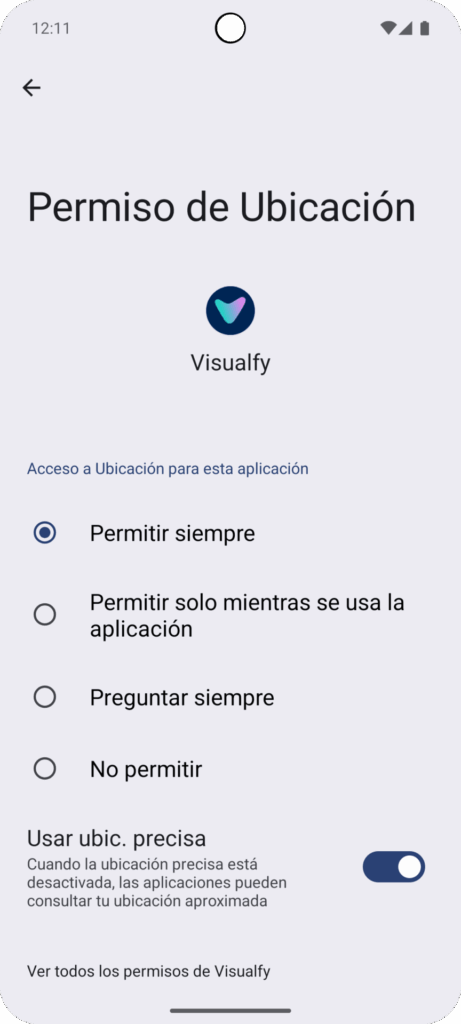
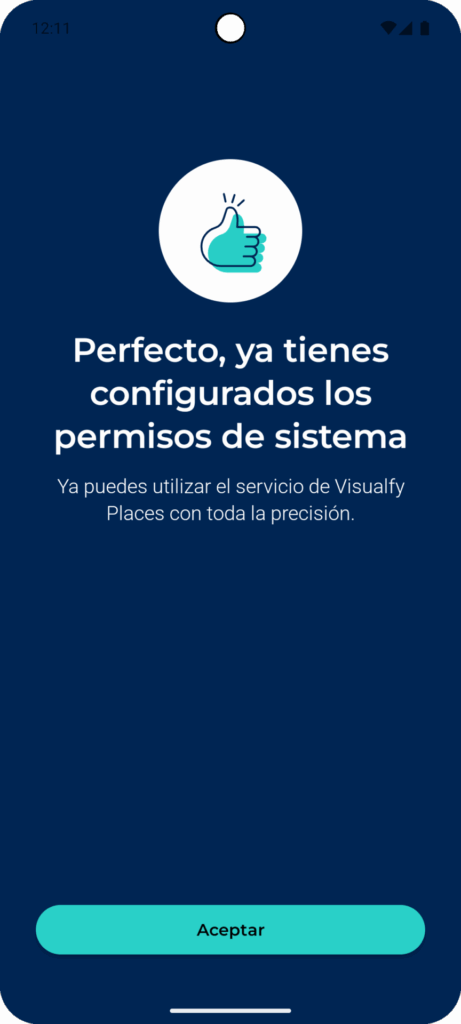
Enable the permission from your phone’s “Settings” #
If you denied this permission before, you can enable it from:
- iOS: go to Settings → in the search box at the top, type “Location” → tap “Share My Location” → turn on location.
- Android:
- Swipe down the menu at the top of the phone and tap the “Location” icon.
- Go to Settings → in the search box at the top, type “Location” or “GPS”. Turn on this option.
* These instructions may vary depending on the brand and model of the device.


