The Control Panel has two menus: the side menu, with the panel screens, and the user menu, with your profile and preferences.
The screenshots show the Control Panel in Spanish. You can switch it to English in the user menu.
Side menu #
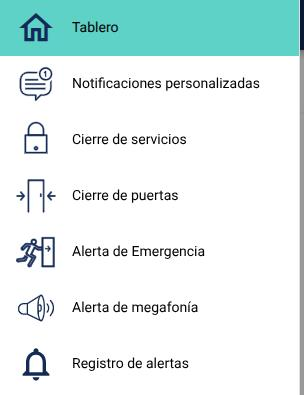
Tap the three-line button at the top left to open or close it. It has these options:
- Dashboard
- Custom Notifications
- Closing Services
- Closing Doors
- Emergency (only if the building has it)
- Loudspeaker Alert (only if the building has the transcription equipment)
- Alert Logs
User menu #
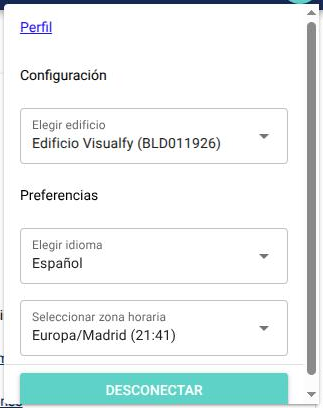
Tap the circle with your initials at the top right. It has these options:
- Profile.
- Select building: if you manage several buildings, choose which one you want to see.
- Select language: the panel language, Spanish or English.
- Select Time Zone: Europe/Madrid or Atlantic/Canary. The times of the alerts and devices are shown in the chosen zone.
- Disconnect: logs you out and goes back to the login screen.
Profile #
In the Profile you see the buildings you manage, with the number of people in each one, and you can change your password:
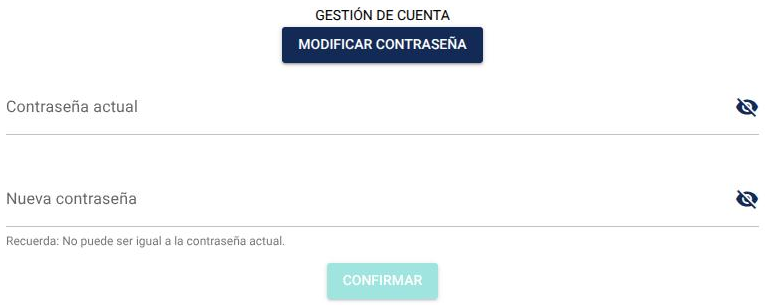
- Tap “Change password”.
- In “Current password”, type the one you use now.
- In “New password”, type the new one. It must have more than 8 characters and can’t be the same as the current one.
- Tap “Confirm”. “Password changed successfully.” appears.