

The Appointment alert lets you know on your phone when it is your turn to be attended.
When the building you are subscribed to says it is your turn, you get an alert on your phone.
The alert works in one of these ways, depending on the turn system each building uses:
- By sharing your ID card number (DNI).
- By adding the ticket of your turn.
- By sharing your DNI or adding the ticket of your turn.
Required permissions #
To get this alert correctly, you need to allow:
- Push notifications.
- Full-screen alerts (Android only).
- Sharing your DNI or adding a ticket.
The app asks for these permissions when you subscribe to a building with this alert.
Sharing your DNI or ticket #
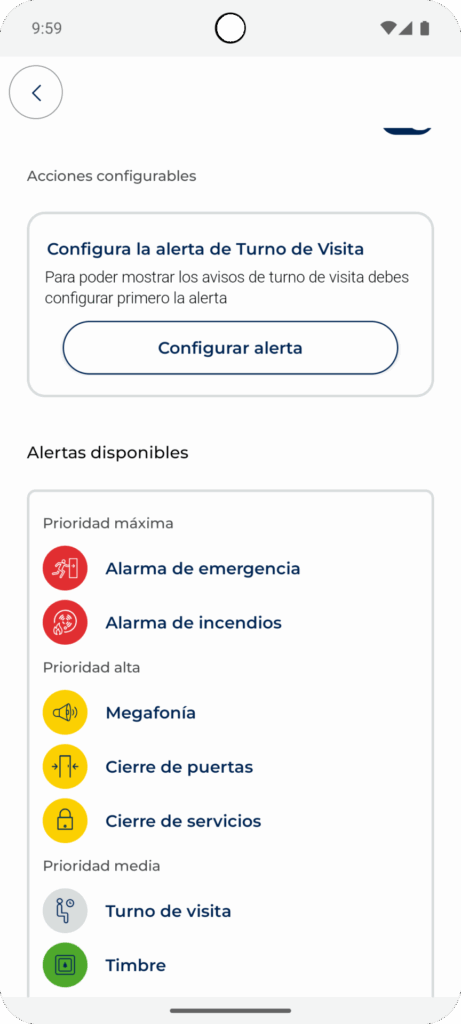
If the building uses this system, the app asks for your DNI when you open the building information. If you don’t share it then, the app asks you again later.
If you don’t share your DNI, the building can’t send you the turn alert. Only people who have shared their DNI get it. One of these two things can happen:
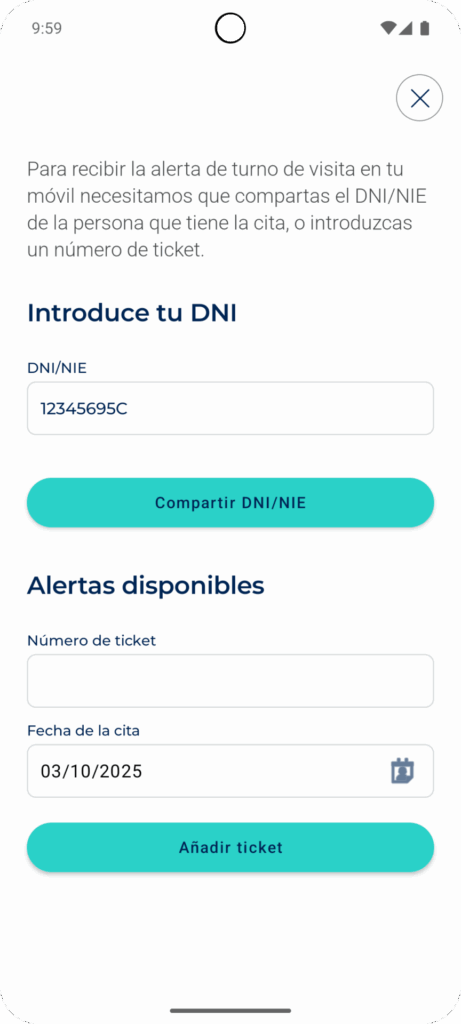
- If you haven’t saved your DNI in the Visualfy app yet, the app asks you to type it.
- If you already saved it in your user details, you only need to allow sharing it.
NOTE: type the DNI with 8 numbers and one capital letter, with no spaces. For example: 12345678A.
If the building accepts tickets, you see a box to type the ticket number and the appointment date, and the “Add ticket” button.
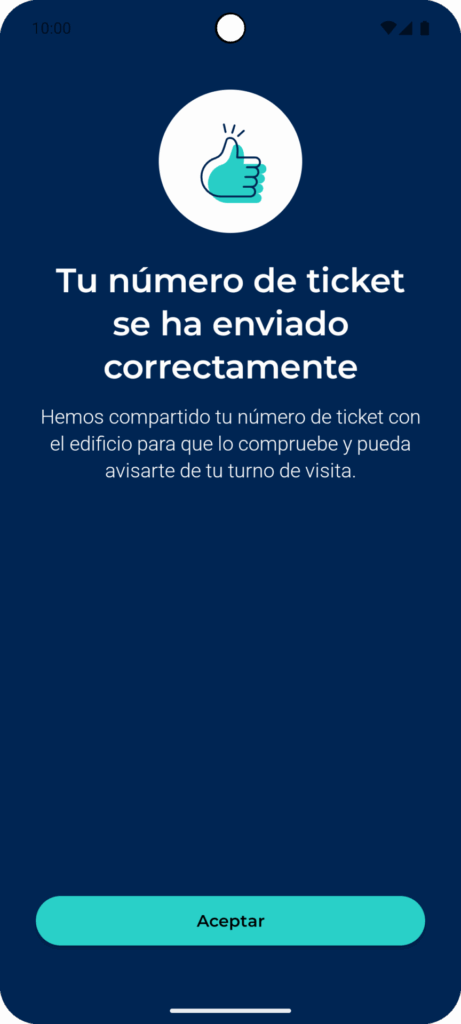
When you share your DNI or ticket, a message confirms it. If there is a problem with the DNI, you get a notification.
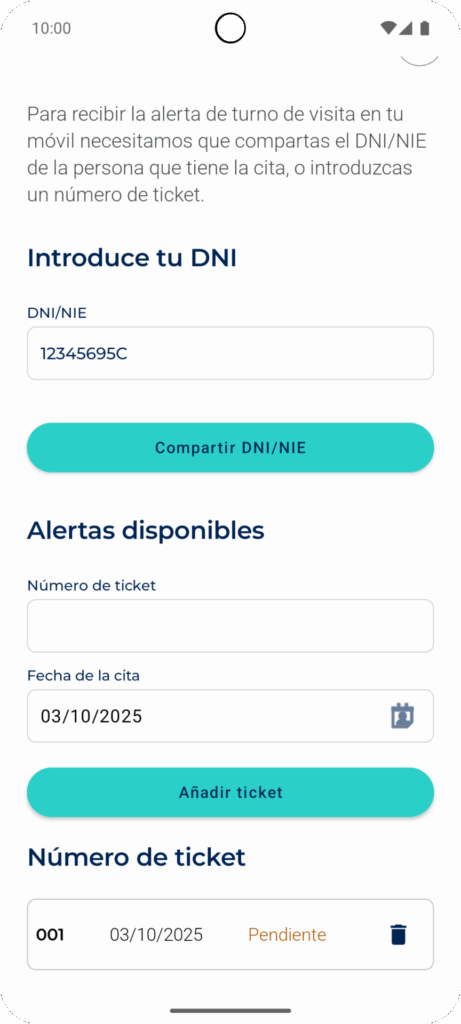
The ticket first shows as “Pending”. The building checks it and marks it as “Validated” or “Invalid”.
When it is your turn #
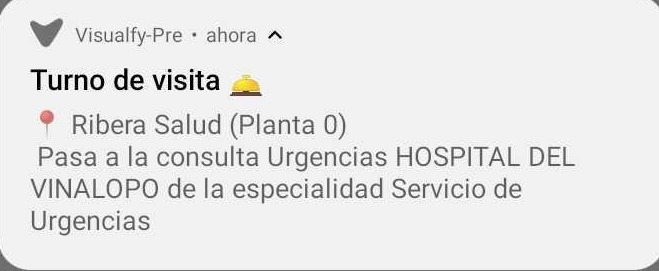
When it is your turn, you get a notification on your phone like the one in the example. It tells you which building it comes from and which room or desk you have to go to.
On Android, you also see the alert in full screen, if you allowed it. The screen lights up with the alert color and shows its icon and the same information as the notification.
Problems with the DNI #
The DNI is not registered in the building #
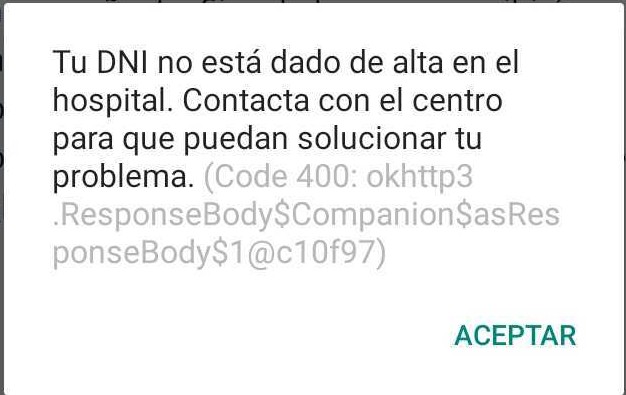
If this message appears when you share your DNI, the building does not have it. Contact the center so they can fix it.
The DNI is not written correctly #
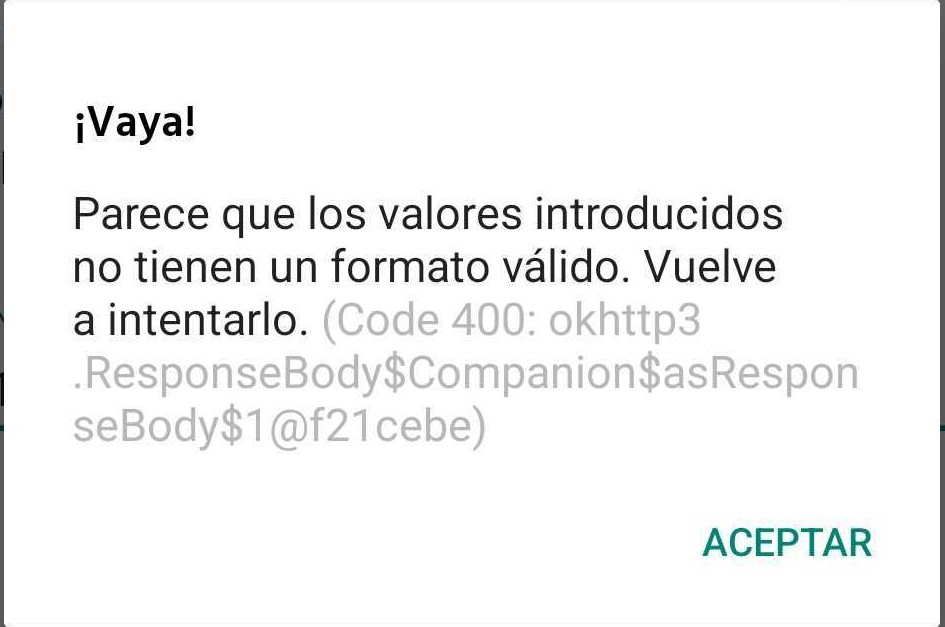
The app only accepts the DNI or NIF if:
- It has 8 numbers.
- It has a letter after the numbers.
- It has no special characters.
If not, the app shows the error in the image.
Problems with the ticket #
- Type the ticket number exactly as it appears on the ticket, with the same capital letters, lowercase letters and special characters.
- If the ticket shows as “Invalid”, delete it and add it again.
Deleting a ticket #
- Tap the card of the building with the Appointment alert.
- Tap the Appointment card. A screen opens where you can add tickets and see the ones you already added.
- Find the ticket you want to delete and tap the trash icon. The app asks you to confirm.
- Tap “Accept”. The ticket disappears from the list.
Stop sharing your data #
Deleting the DNI #
If you don’t want to get the alerts of an adapted space, delete the building. You stop getting its alerts and your data is deleted from the building servers.
If you subscribe again later, the app asks you again if you want to share your DNI.
Deleting all tickets #
If you don’t want to get the alerts of an adapted space, delete the building. You stop getting its alerts.
If you subscribe again later, the app asks you for your tickets again.
To delete or change the DNI saved in the app, go to the settings menu.


