

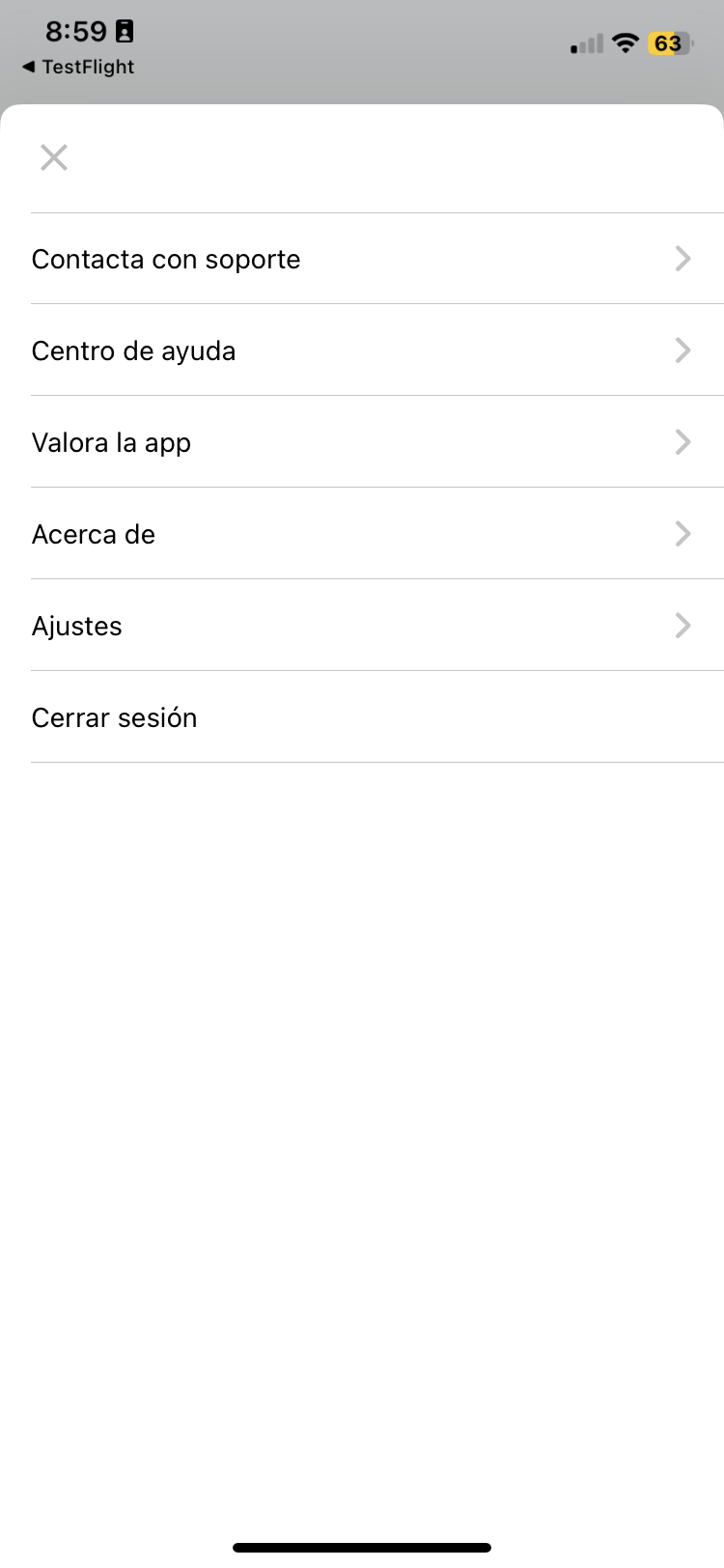
The Visualfy app settings menu lets you, among other things, change your personal details, contact support, close sessions open on other devices, or sign out of the current session.
To open the menu, tap the three-dot icon at the top right of the screen.
Below we explain the options in this menu in more detail.
Contact support #
When you tap “Contact support”, you are taken to the Visualfy website, which shows the phone numbers, email and opening hours of Customer Support.
It is a convenient way to get personalized help and solve any technical problem or question you may have about Visualfy products or services. The Customer Support team will be available to give you the right assistance and guidance.
Help center #
The Visualfy Help Center is a platform with a range of resources and information to help you understand and use Visualfy products and services efficiently.
The main goal of the Help Center is to guide users, so they can solve common problems, get answers to frequently asked questions and access relevant information.
Rate the app #
Our users’ opinion is very important. It helps us improve and create new features, so we encourage all users to rate the app.
When you tap this menu option, the App Store or the Play Store opens showing the Visualfy app so you can rate it.
About #
In this menu option you can see information about:
- Installed app version.
- Copyright.
It also shows links to:
- App License: an internal screen with a list of licenses.
- Privacy Policy (link to the website)
- Legal Notice (link to the website)
If you have a Visualfy Home installed, you will also see a list of the devices linked to your account, telling the DSS apart from the detectors and showing each serial number.
Settings #
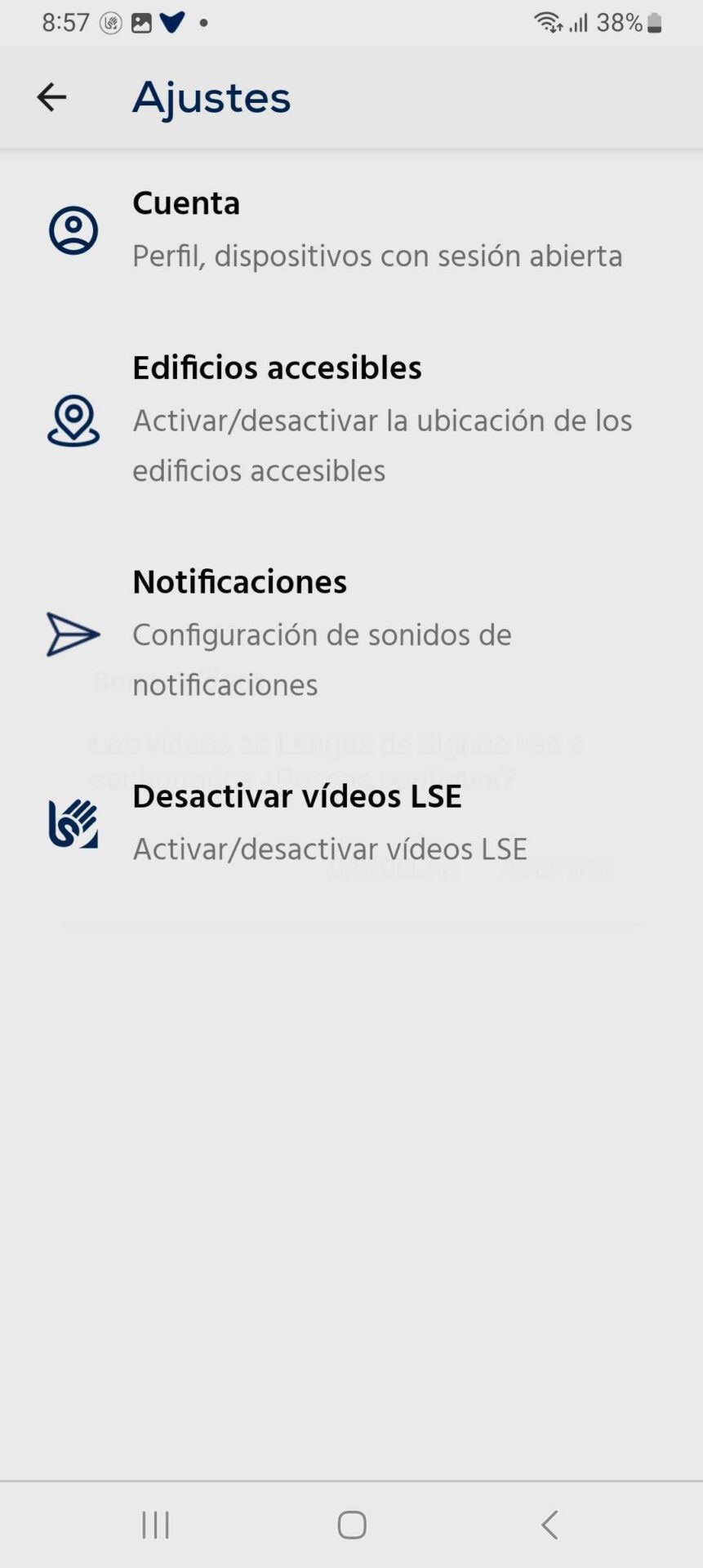
When you tap this option in the Settings menu, a new screen opens that lets you change and customize your profile, close sessions left open on other devices, customize the notification sound (Android only), turn the location of accessible buildings on or off, and the option to watch videos in sign language (LSE).
Profile #
In “My account” you can change the name and phone number you used when you registered.
Close sessions on other devices #
If your session was left open on another phone, this feature closes all sessions except the one you are using now. The session on your current phone is not affected.
Sign out #
If you want to sign out of the Visualfy app, follow these steps:
- Tap the three-dot icon at the top right of the screen to open the app menu.
- In the menu, select “Sign out”.
- A pop-up window asks if you are sure you want to sign out. If you are, tap “Accept” or “OK” to confirm and sign out.
Once you have signed out, you no longer have access to the app features that need a signed-in session, such as receiving alerts, alarms and reminders. If you want to use the app again, you must sign in again.
When you sign out, data such as your reminders, alarms or Connect settings are kept safe until you sign in again, when they will be available again.
If you lose your device or think someone has accessed your account without your permission, we recommend that you change your password and sign out of all devices to protect your account.


