

Receiving alerts from a building #
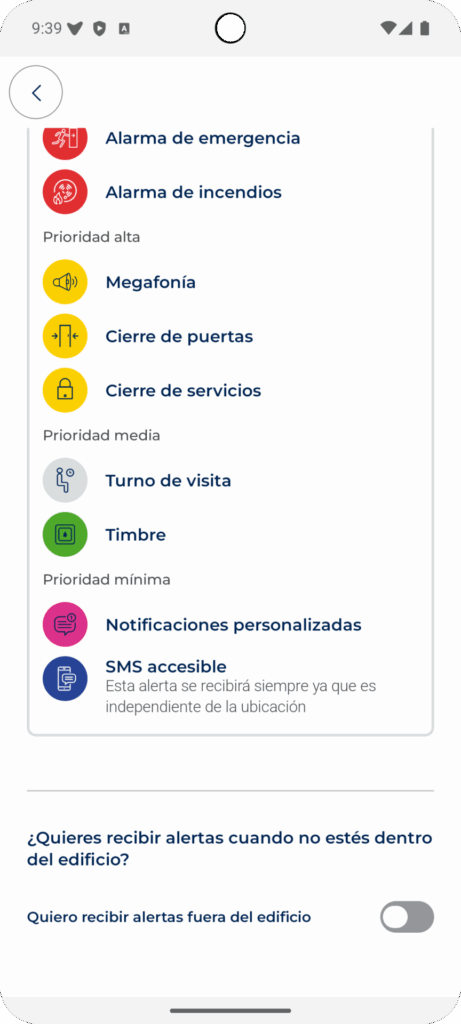
You can set up push notifications for Visualfy Places alerts from the building information screen.
Receiving alerts based on your location #
To receive building alerts in this mode, you must have:
- Your phone’s GPS or Location turned on.
- The location permission enabled.
- Maximum accuracy enabled in the location permission.
- The permission to receive Visualfy notifications.
- On Android, you also need all the settings required for full-screen alerts.
Receiving alerts regardless of your location #
To receive building alerts in this mode, you must have: the permission to receive Visualfy notifications. On Android, you also need all the settings required for full-screen alerts.
To receive Visualfy Places alerts regardless of where you are, follow these steps:
- Open the Visualfy app with your account and go to the building you want to set up.
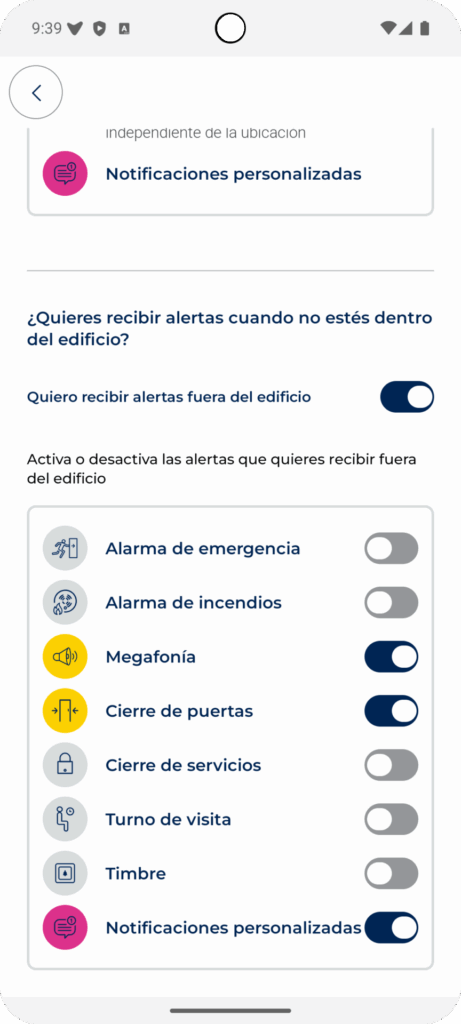
- Turn on the “I want to receive alerts outside the building” switch.
In this case, you have to choose manually which alerts you want to receive and which you don’t. Active alerts are always received (wherever you are).
- Turn on alerts
To turn on a building’s Places alerts, just tap its switch. The alert is on when the switch is turquoise.
Turn off alerts
To turn off a building’s Places alerts, just tap its switch. The alert is off when the switch is gray.
Share a building #
If you want to share a building with your friends, family or on your social networks, follow these steps:
- Open the Visualfy app on your phone and select the adapted place you want to share.
- On the place details screen, select the “Share” option at the top right.
- A pop-up window appears with different options to share the place, such as WhatsApp, email, social networks and others. Select the option you prefer.
- A link is created that you can send to your contacts or post on your social networks. When someone clicks the link, they go to a page with detailed information about the place and how to get there.
- If you prefer, you can also share the location of the place directly through map apps such as Google Maps or Apple Maps. To do this, select “Share location” in the pop-up window and choose the platform where you want to share the place.
When you share a place adapted by Visualfy with other people, you help promote accessibility and build a more inclusive society for everyone.
Unsubscribe from a building #
To unsubscribe from a building in Visualfy, follow these steps:
- Open the Visualfy app on your phone and select the adapted place you want to remove.
- On the place details screen, select the “Delete” option at the top right.
- A confirmation pop-up appears. Select “Yes, stop receiving notifications” to confirm that you want to unsubscribe from the building.
Once you confirm, you will no longer receive notifications from that building. If you ever want to subscribe to that building again, you can do it by following the steps explained on this page.


