

The Notification Center is a tool that lets users receive visual alerts and notifications about important events around them. The app is designed for people with total or partial hearing loss, so visual notifications are essential to stay informed about what is happening around them.
The Notification Center makes it easier for you to see and manage many notifications, from issues with the DSS at home to friend requests or, for example, any Visualfy Places alert.
In the Notification Center you will see the last 100 notifications you have received in the last 15 days.
Accessing the Notification Center #
You open it from the bell icon at the top right of the screen. The icon shows the number of unread notifications.
What kinds of notifications are there? #
The notifications in the Notification Center are informative and interactive. With them you can, for example, accept a friend request or check that everything is fine with your Visualfy Home.
These are the notifications you currently receive:
- Friend request received: when you receive a friend request.
- Friend request accepted: when the other user accepts your friend request.
- Low battery: when the battery level of the DSS and/or the detectors is very low.
- DSS connection error: when the DSS is disconnected from the home Wi-Fi or turned off.
- New DSS firmware version: when there is a new DSS firmware update.
- Away mode: when the DSS away mode is turned on.
- Places alerts: notifications received in Visualfy Places accessible buildings.
How do I delete a notification? #
In the Notification Center you can delete one notification or all of them. The following video shows how to do it:
Troubleshooting #
To refresh the Notification Center view, just swipe the screen down. A circle appears to show that the information is loading. It disappears when everything is up to date.
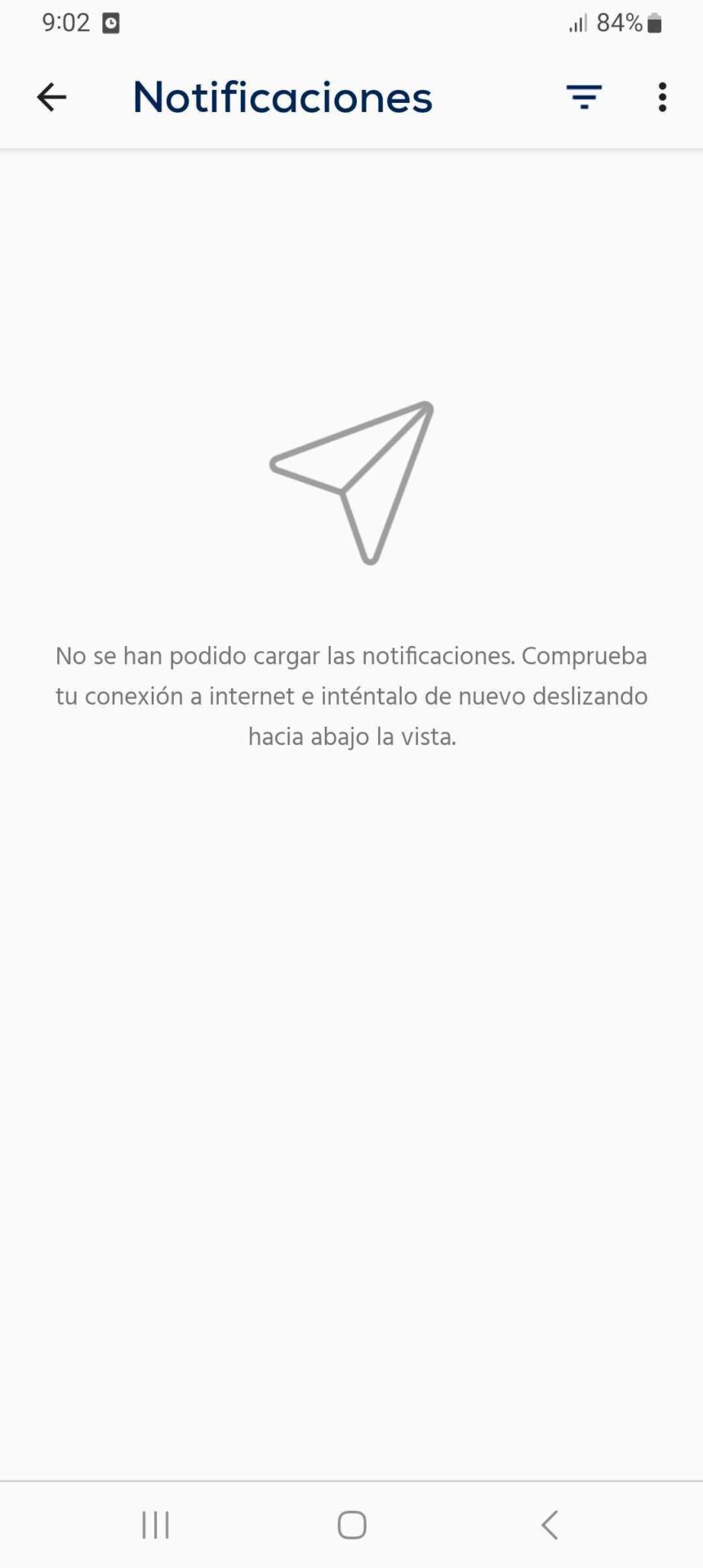
The list does not load #
If the list of notifications does not appear, it is usually because the phone has no Internet connection. Make sure Wi-Fi or mobile data is on and refresh the Notification Center by swiping down.
Notification details #
When you tap a notification in the Notification Center, a full screen opens with more detailed information about the event. This is very useful if the information is not clear from the notification alone.


