

Not receiving Visualfy alerts? Enable this permission to receive push notifications.
Push notifications #
The “notifications” permission is a permission on both Android and iOS.
Thanks to this permission, you receive the notifications the Visualfy app creates to alert you. You enable this permission as follows:
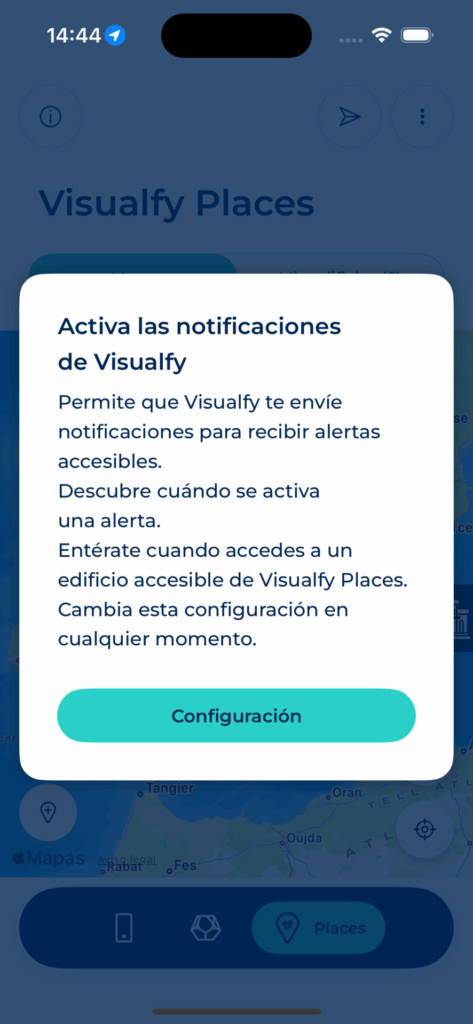
- On both iOS and Android, when you open the app, the following message appears to enable permissions:
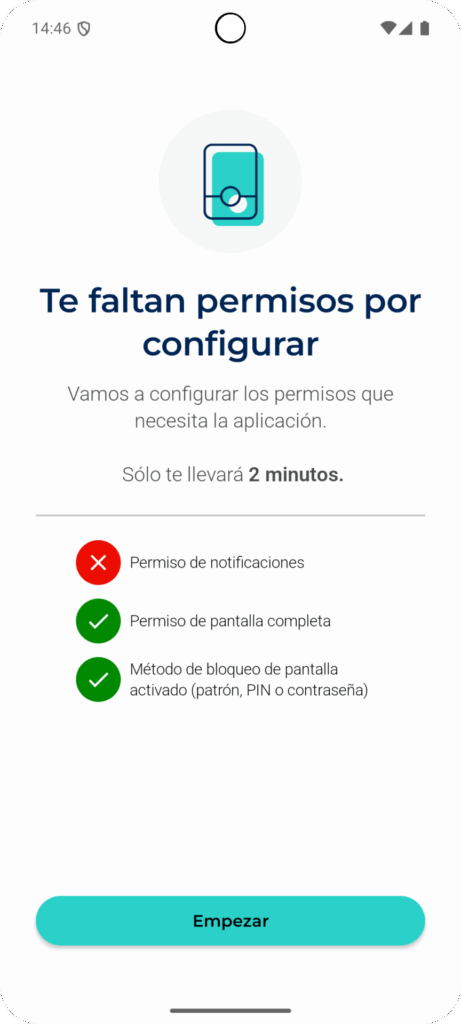
- Next, a screen shows the permissions that are still missing. Tap the start button to set them up.
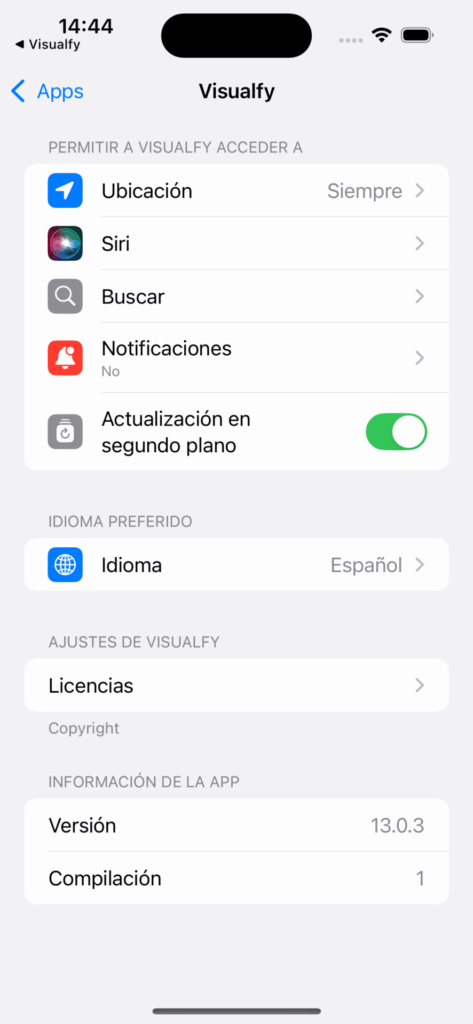
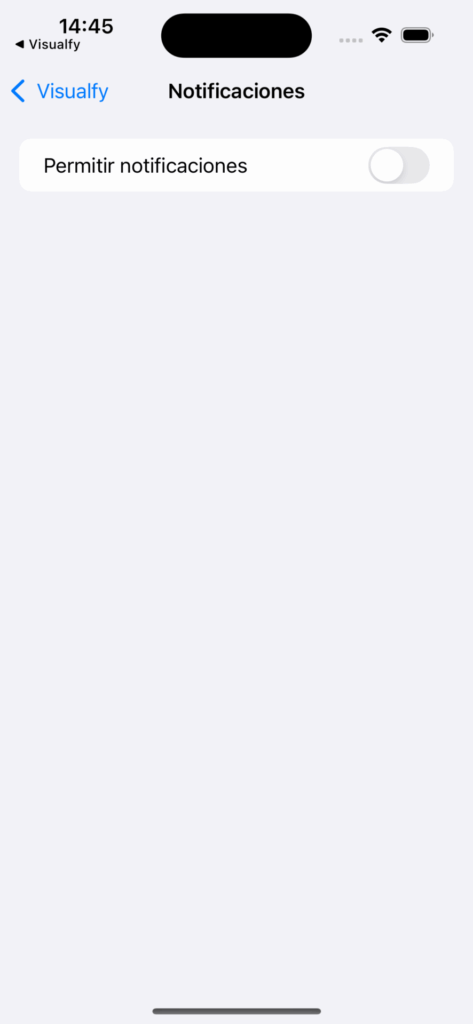
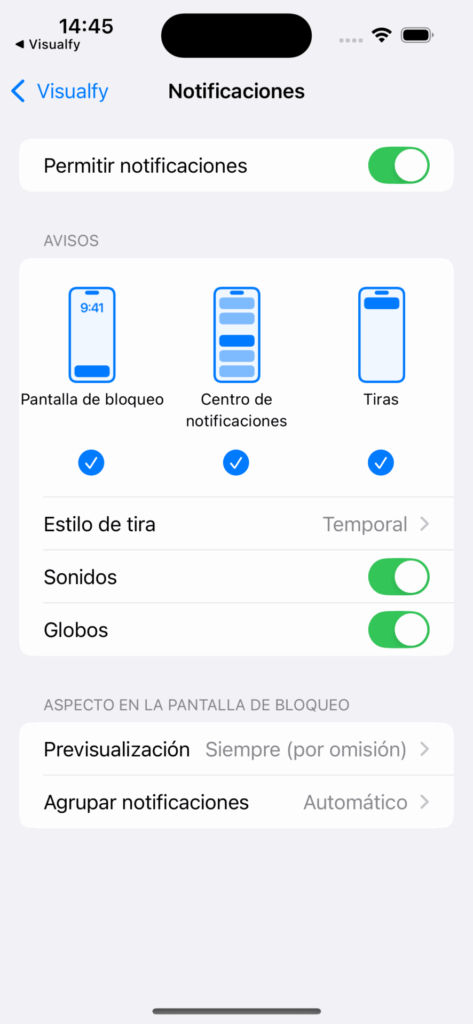
- iOS only: you are taken to the app settings screen. Tap notifications, turn on the allow notifications button and, finally, check that everything is on.
- Android only:
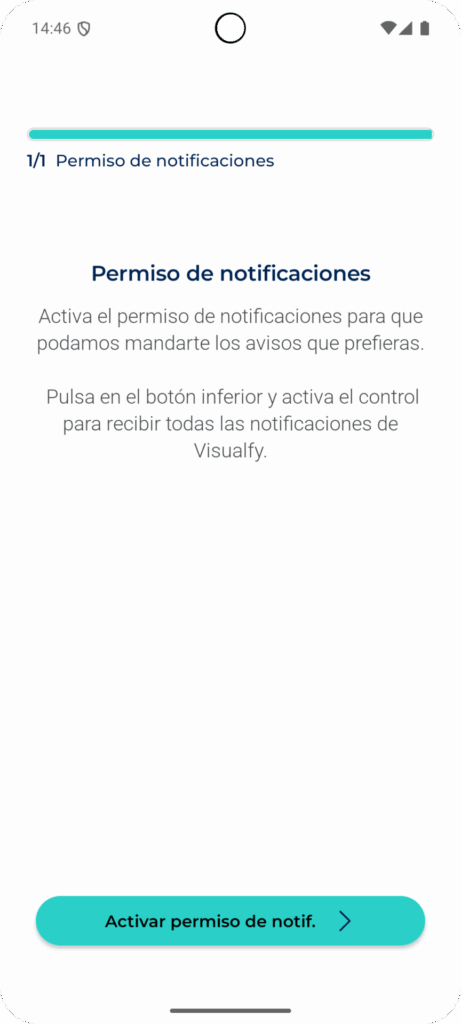
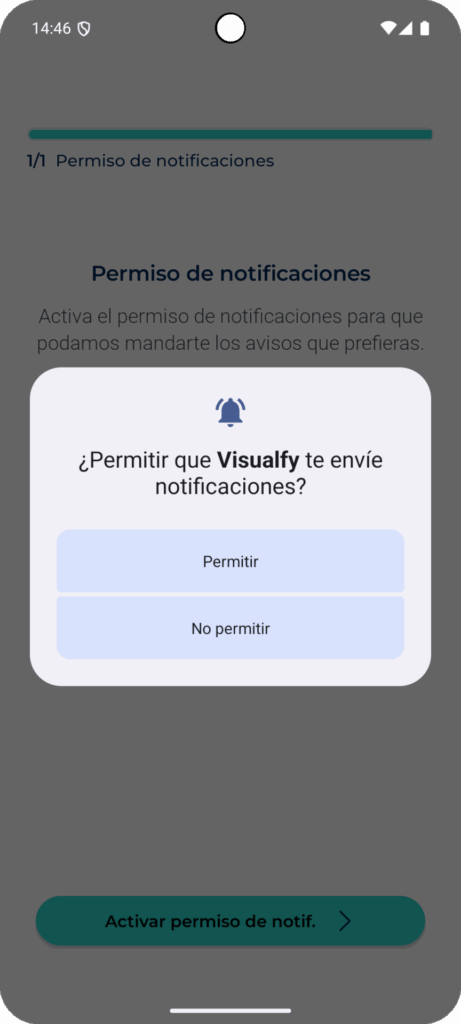
- After you tap the start button, a screen appears with a button to enable the notification permission. Tap it and a dialog appears to allow them. Tap allow and they are enabled.
If you have any problem receiving push notifications, we recommend the checks on this page.
If you want to customize the sound of Visualfy app notifications on Android, we recommend this link.
Enable the permission from your phone’s “Settings” #
If you denied or turned off this permission before, you can enable it from the device Settings:
- iOS: Settings -> Visualfy -> Notifications -> Allow Notifications -> turn on the switch
- *Android: Settings -> Apps -> Installed apps -> Visualfy -> Notifications -> Show notifications -> turn on the switch
*These instructions may vary depending on the brand and model of the device.


