

With the Visualfy Alarm Clock you create alarms you can see and feel: at the chosen time, your phone can show the alert full screen, make the screen blink, turn on the flash, vibrate, play a sound and turn on your Philips Hue bulbs.
Required permissions #
The first time you tap “+” to create an alarm, Visualfy checks that your phone has everything it needs and guides you to turn it on:
- A screen lock with a pattern, PIN or password.
- The notifications permission.
- The full screen permission (display over other apps). On Xiaomi phones, also the special permissions the app asks for.
- On Android 12 or later, the alarms and reminders permission.
- If you want to use the flash, the camera permission. The app asks for it when you turn on “Turn on flash”.
NOTE: without these permissions you cannot create the alarm. If you did not allow the alarms permission, the app shows “Visualfy does not have access to your alarms.”. Tap “Settings” and turn it on.
Accessing the Alarm Clock #
- Open the Visualfy app with your account.
- In the bottom bar, tap “Mobile”.
- Tap the “Alarm Clock” card.
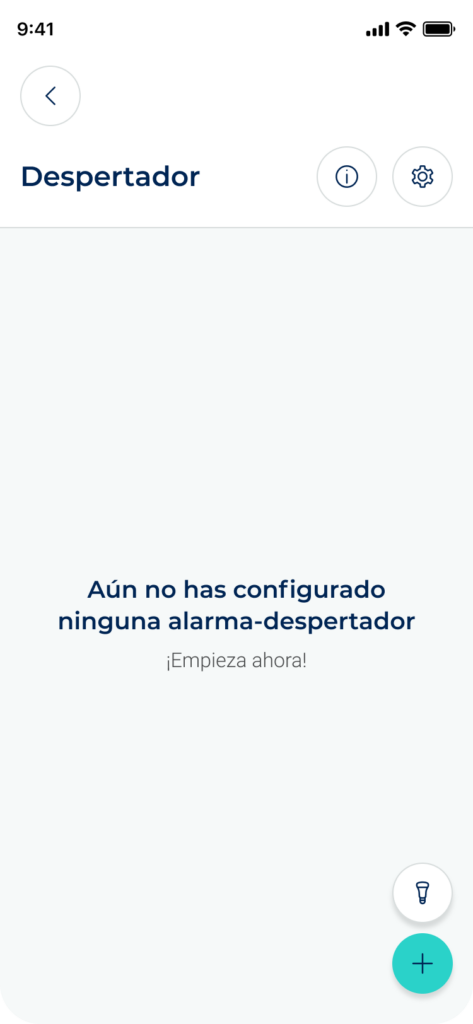
You will see your list of alarms. At the top you have the help button “?” and the settings gear. At the bottom right, the “+” button to create an alarm and the bulb button to link your Hue Bridge.
Creating an alarm #
- Tap “+”.
- Choose the time and the other options.
- Tap “Save” at the bottom.
If you tap the X at the top, you leave without saving.
Alarm settings #
Time and name #
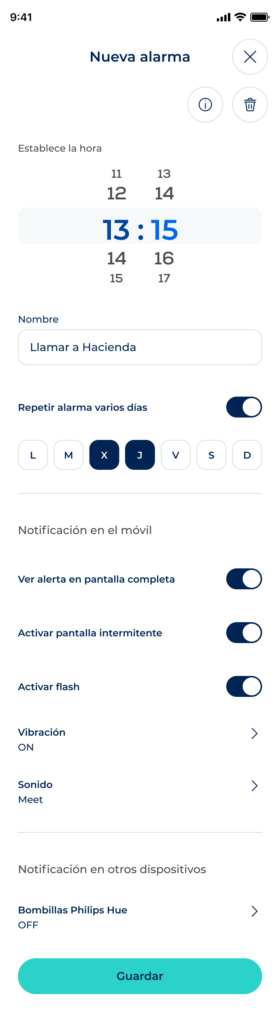
- Time: move the hours and minutes wheel. If the time has already passed today, the alarm will go off tomorrow.
- Name: type a name to recognize it. If you leave it empty, it is saved as “Alarm clock label”.
Repeat #
Turn on “Repeat the alarm on multiple days” and mark the days of the week when you want it to go off. If you don’t mark any day, the alarm goes off only once.
Mobile notification #
- Fullscreen alert: it shows as on when your phone has the full screen permission. If it is missing, you see the “Full screen permission” message with the “Activate permission” button.
- Turn on blink screen: the screen blinks while the alarm is going off.
- Turn on flash: the phone’s flash blinks while the alarm is going off.
- Vibration: tap to turn it on and choose a pattern: Short, Long, Reminder, Heart beat, Fast, SOS or a custom one you create. By default it is on, with the Long pattern.
- Sound: tap to choose one of your phone’s ringtones. By default it is off.
Notification on other devices #
Tap “Philips Hue Lights” to choose which bulbs flash when the alarm goes off, or tap “Turn all the lights on”. If you don’t have a Hue Bridge linked yet, tap the button to link it.
General settings #
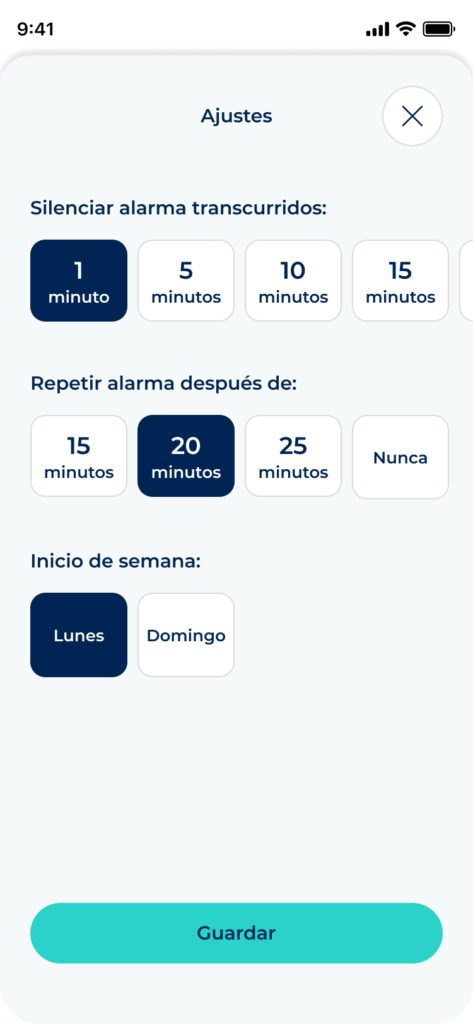
With the settings gear in the list you set options for all your alarms. Each option is saved when you tap it.
- Silence alarm after: how long the alarm keeps alerting you if you do nothing: 1, 5, 10, 15, 20 or 25 minutes, or “Never”. By default, 5 minutes. It applies to all alarms.
- Repeat alarm after: how many minutes the alarm is delayed when you tap “Delay”: 1, 5, 10, 15, 20 or 25. By default, 10 minutes.
- Start of the week: Monday or Sunday, to order the days when repeating.
When the alarm goes off #
At the chosen time, the alarm opens full screen, even if the phone is locked. You will see the time, the alarm name and two buttons:
- “Delay”: it goes off again after the minutes set in “Repeat alarm after”. Meanwhile, a notification tells you when it will go off.
- “Turn off”: it stops the alarm. If it doesn’t repeat, the alarm is turned off. If it repeats, it will go off on the next chosen day. The X at the top also turns it off.
While it is going off, the phone does what you turned on: blink screen, flash, vibration, sound and Hue bulbs.
If you do nothing, it stops when the “Silence alarm after” time has passed. Then you get the notification “Lost alert… at…”, with the “Discard” button.
NOTE: the sound only plays with the full screen alert. If your phone doesn’t have the full screen permission, the alarm alerts you with a notification that vibrates and has the “Turn off” and “Delay” buttons.
Editing, turning off and deleting #
- Edit: tap the alarm in the list.
- Turn off or on: use the switch of each alarm. Alarms that are off are shown in grey.
- Delete from the list: swipe the alarm to the left and tap “Delete”. It is deleted straight away, without asking.
- Delete from the edit screen: tap the trash icon and confirm with “Delete”.
Troubleshooting #
Hue bulbs stay on after snoozing the alarm #
In the alarm settings, tap “Philips Hue Lights” and check the “Keep color” option. If it is on, the bulbs keep the alarm color after flashing, also when you snooze it. If it is off, they go back to how they were.


